Managing Resources
Select and manage the vehicles and drivers that participate in a usage plan.
The resources tab controls which vehicles and drivers are available for scheduling in a usage plan. Only selected resources appear on the schedule, so this is the first step before generating or assigning shifts.
Opening the Resources Tab
Navigate to the usage plan and select the Resources tab. You see two sections: Vehicles and Drivers.
Selecting Vehicles
The vehicles panel shows all vehicles allocated to the parent work package. Select the vehicles that should participate in this usage plan's schedule.
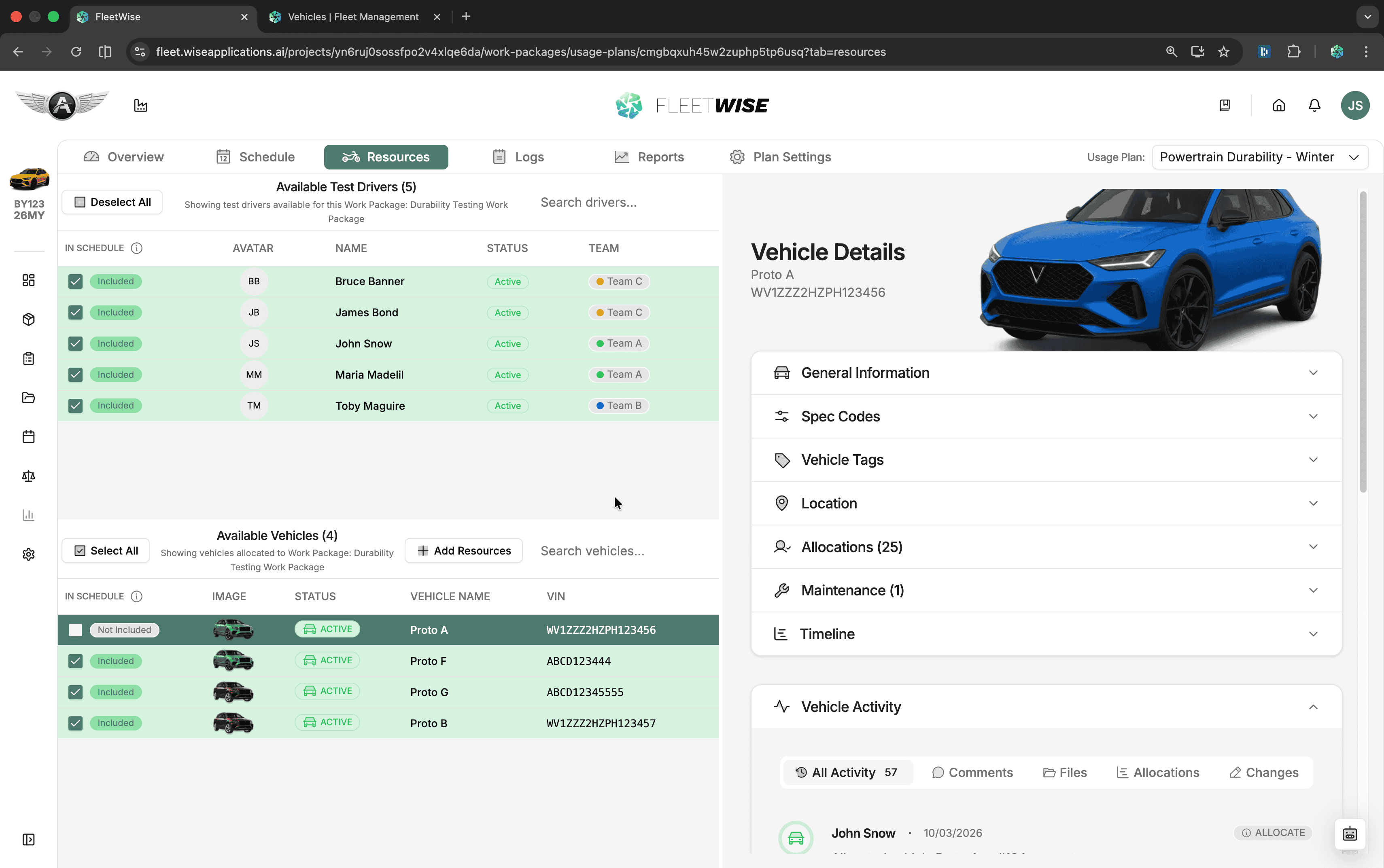
- Check a vehicle to include it in the schedule.
- Uncheck a vehicle to exclude it (its shifts will be removed on next publish).
- Only selected vehicles appear as rows in the schedule's Vehicles view.
Vehicle Source
The available vehicles come from the allocations linked to the parent work package. If a vehicle is missing, check that it has an active allocation for this work package.
Selecting Drivers
The drivers panel shows users with the Test Driver ability who have access to the parent work package. If the work package uses access control, only test drivers from the allowed teams and users appear. If the work package is project-wide (no access restrictions), all project test drivers are shown.
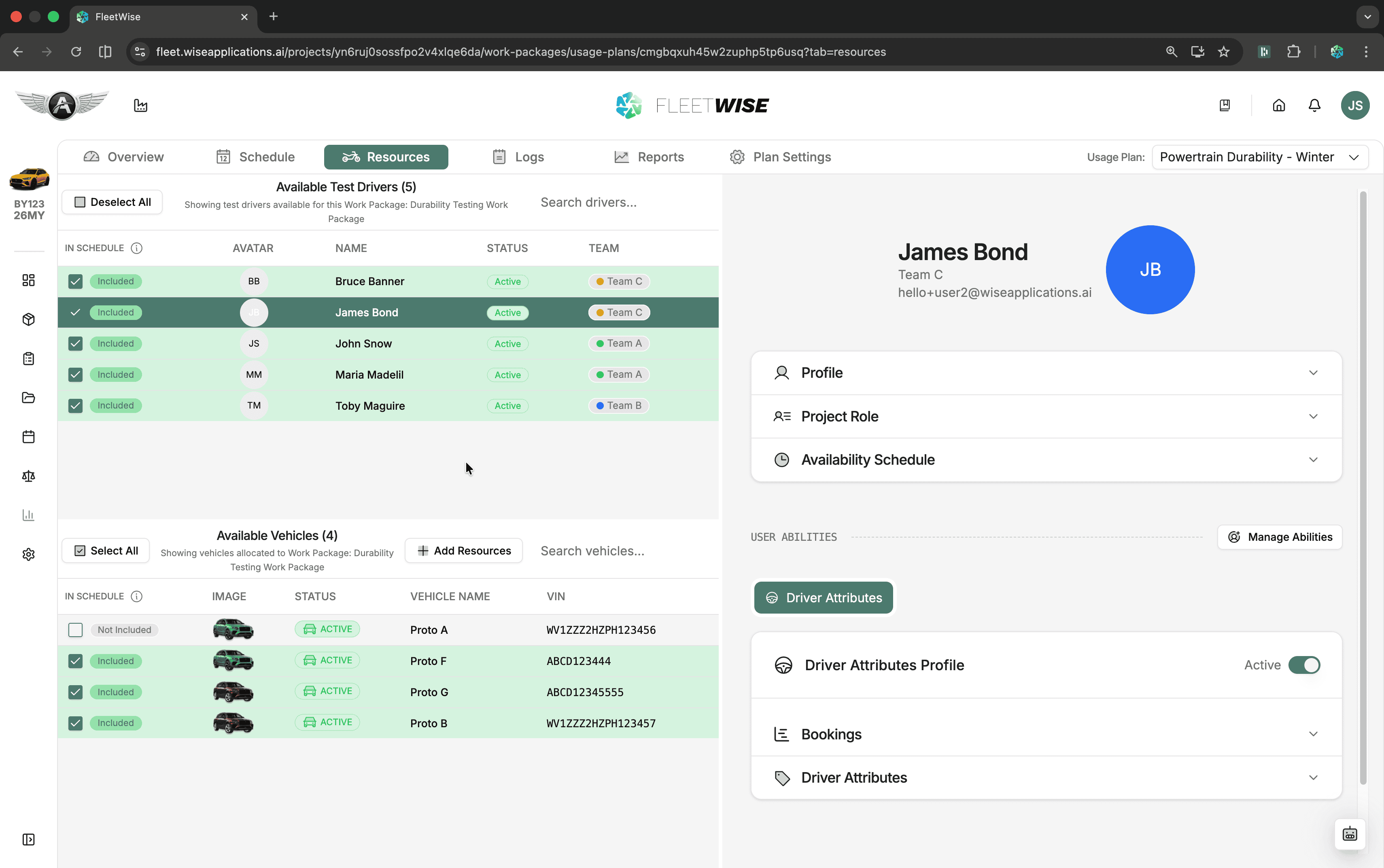
- Check a driver to make them available for assignment.
- Uncheck a driver to remove them from the schedule.
- Only selected drivers appear in the assignment dropdown and in the Drivers view.
Driver Pool Scoping
The available drivers are determined by the parent work package's access rules. If you restrict a work package to specific teams or users, only test drivers within those teams or users appear in the usage plan's driver list.
Publishing Resource Changes
Resource selection changes are treated as draft edits. Use Review Changes to see a summary of added and removed resources, then publish to apply.
Tips
- Keep resource selections aligned with the active planning window. Remove vehicles that have left the project or drivers who are no longer available.
- If driver availability changes mid-plan, update the selection and re-run Auto Assign for affected dates.