Test Drivers
Assign the Test Driver ability to users so they can be scheduled for shifts in usage plans.
The Test Driver ability lets a workspace user be scheduled for driving shifts in usage plans. Once a user has this ability and is activated in a project, they appear in the driver pool and can be assigned to shifts, have their availability tracked, and show up in workload reports.
Driver List
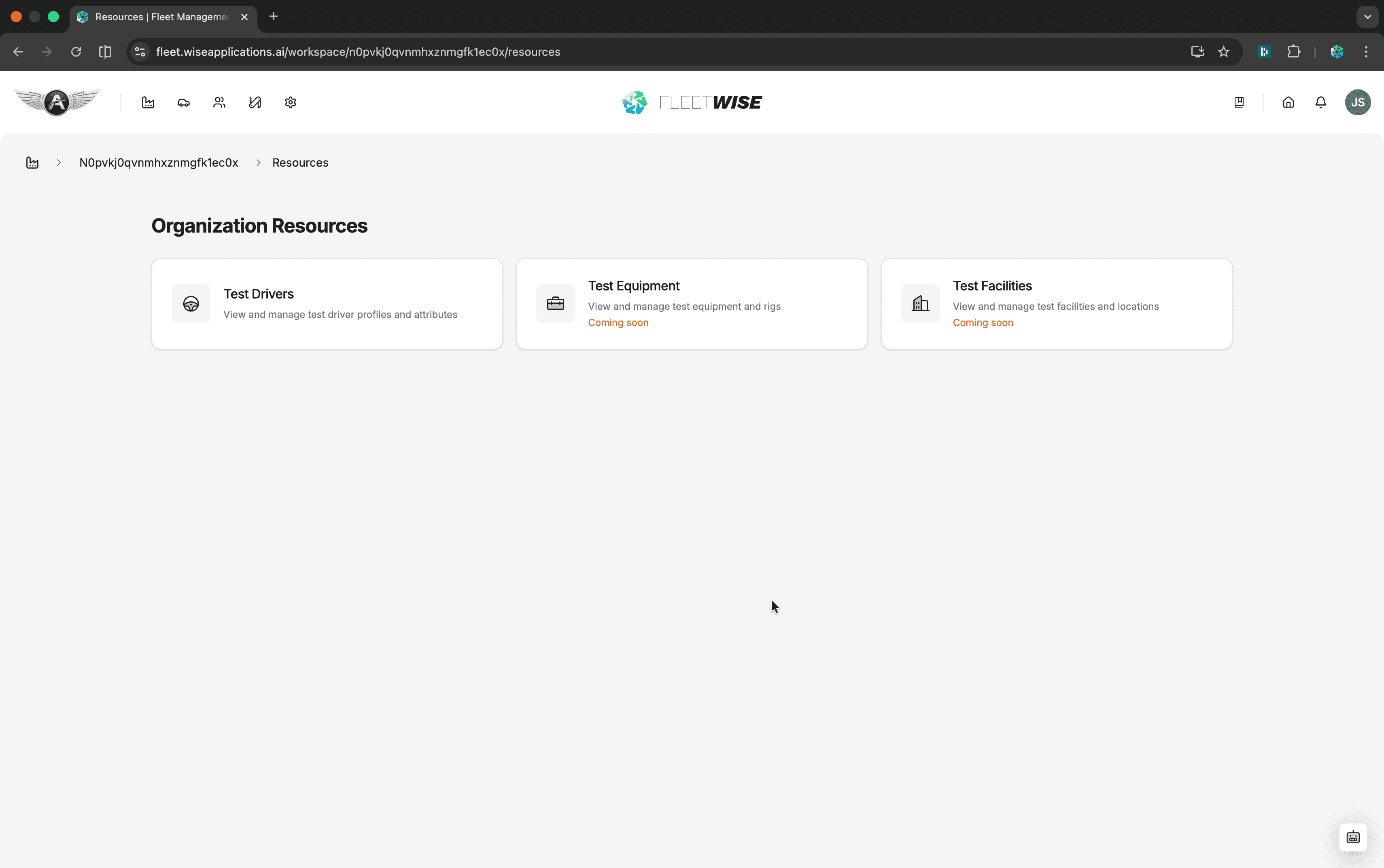
Navigate to Resources → Test Drivers in the workspace header to see all users who have the Test Driver ability.
Assigning the Test Driver Ability
Open a User Profile
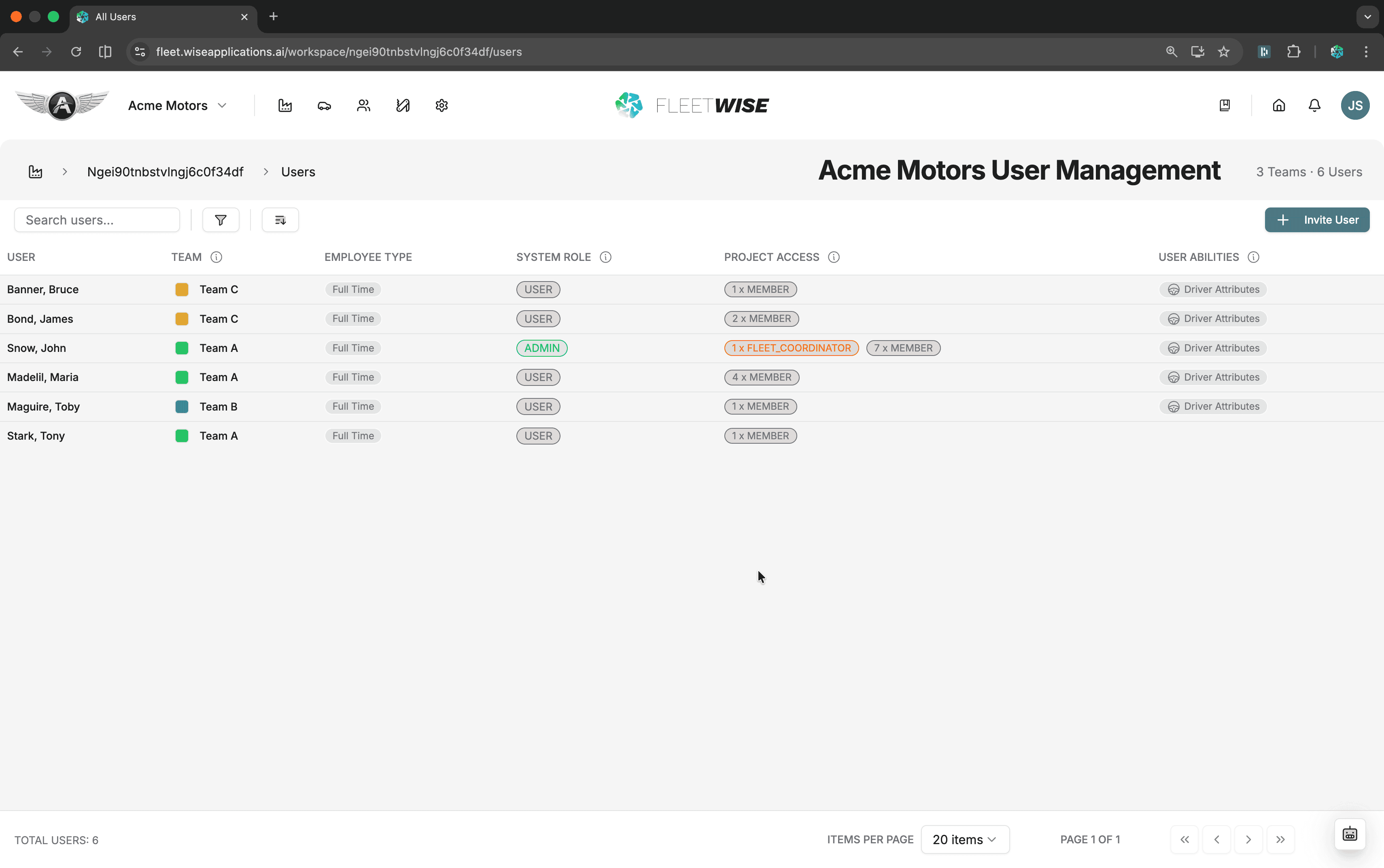
Click on a user row in the workspace users list to open their profile.
Manage Abilities
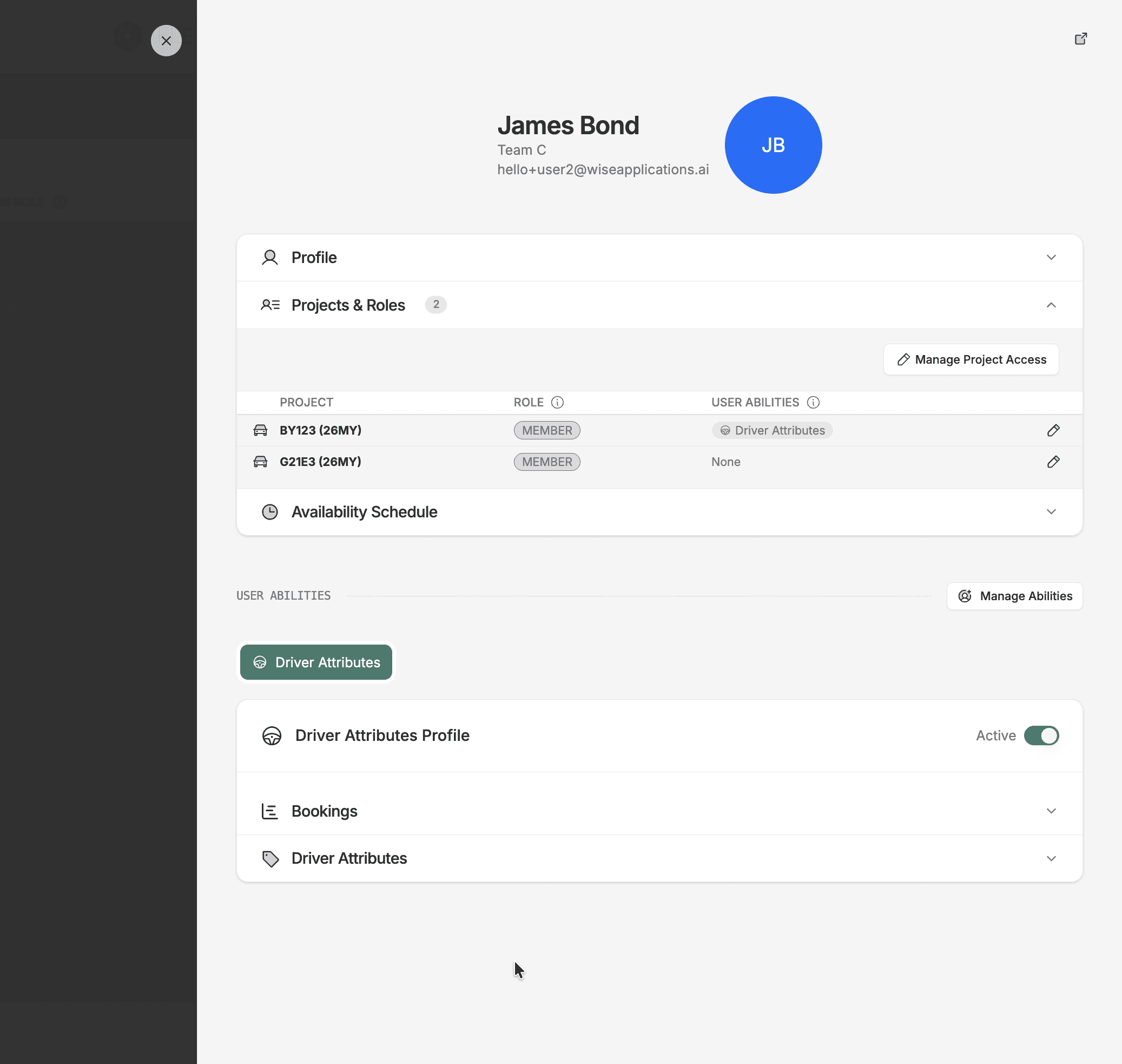
Click the Manage Abilities button. A modal shows the available abilities — check Test Driver and click Save Changes.
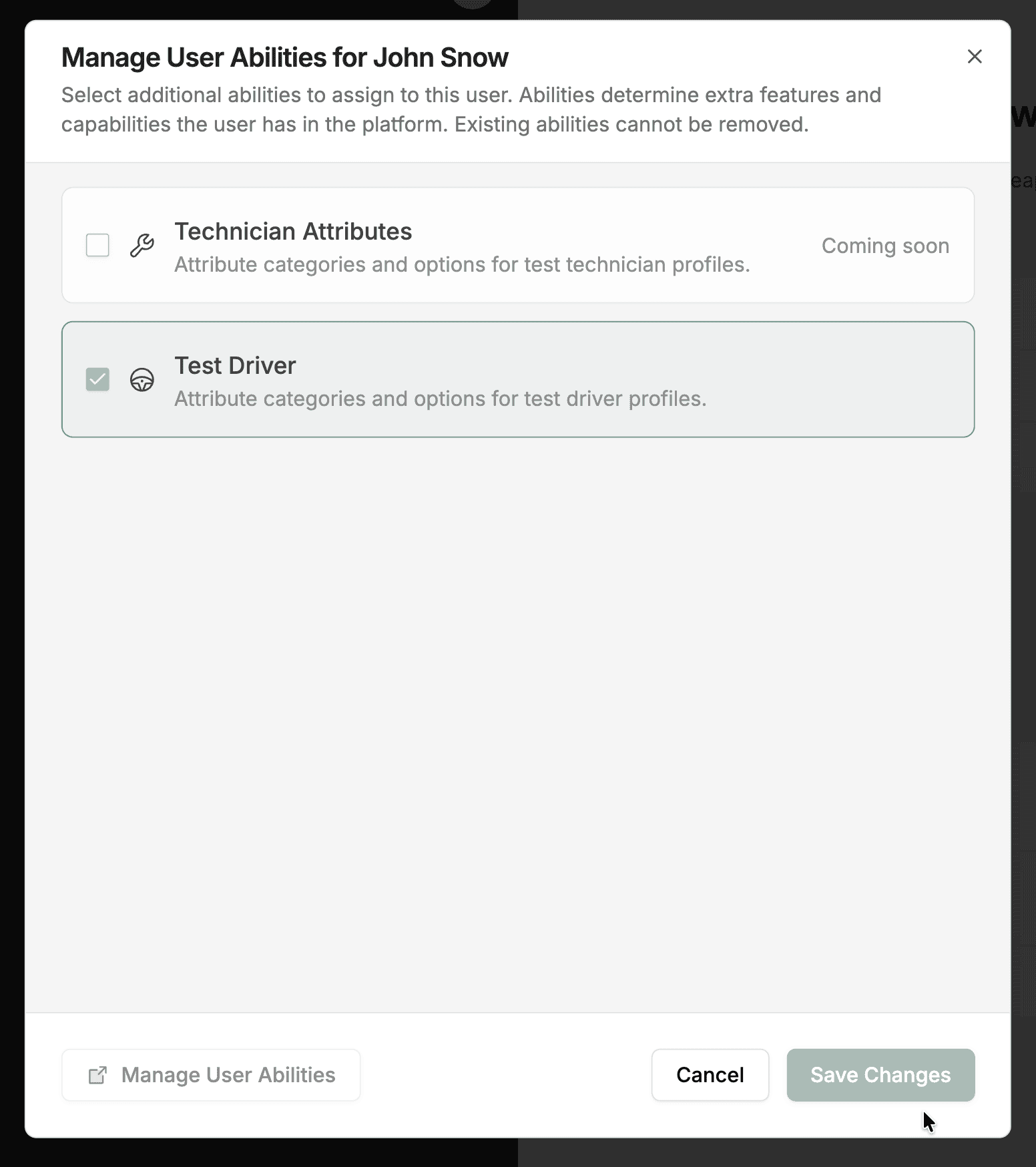
Activate in a Project
Back on the user's profile, open the Projects & Roles section. Use the project access manager to link the Test Driver ability to the projects where they need to drive.
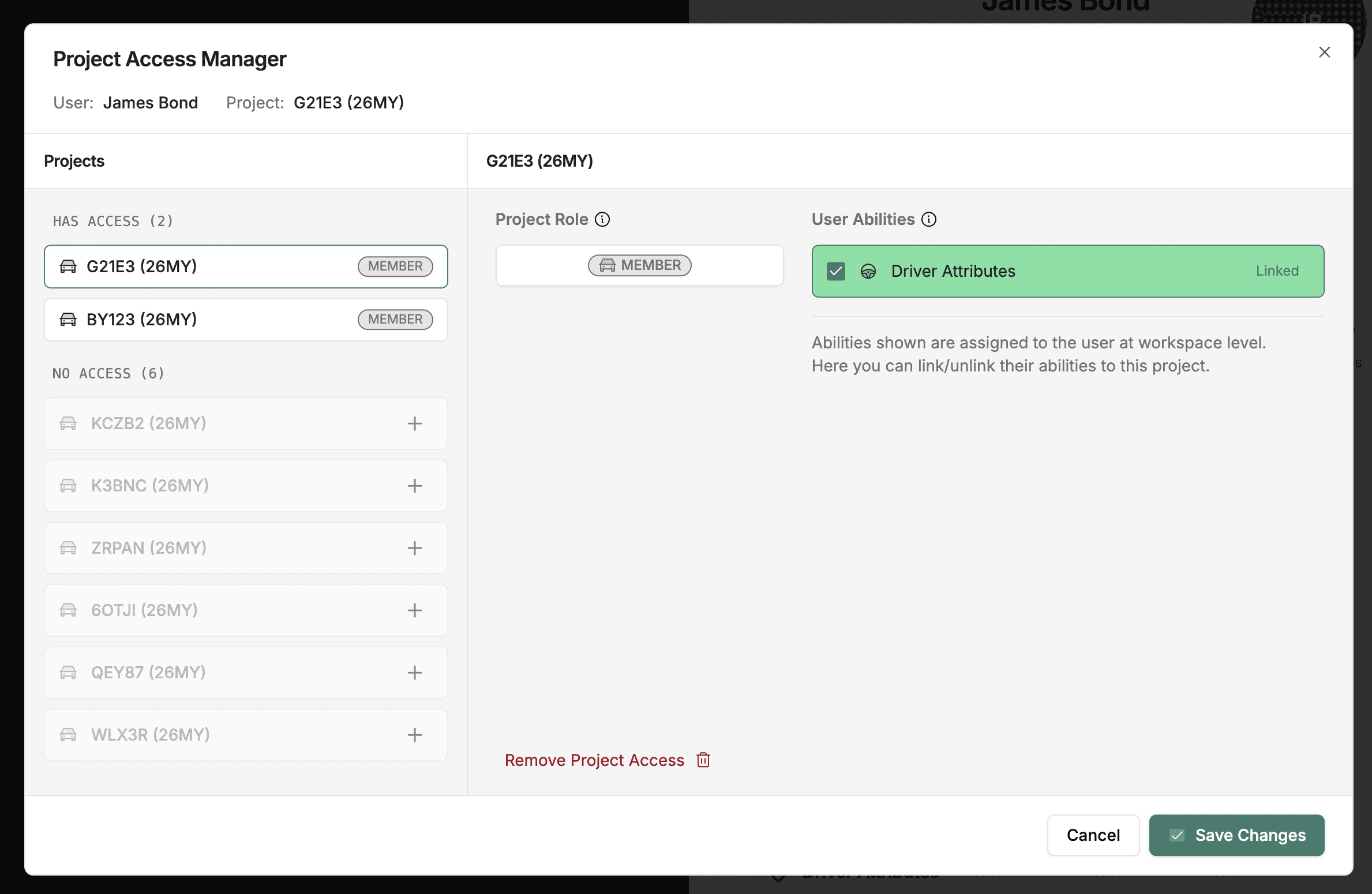
Save
Save the changes. The user now appears in that project's driver pool and can be assigned to usage plan shifts.
This gives you central control over who holds the ability at workspace level, while letting individual projects choose which drivers are active.
Work Package Access Scoping
When a work package has access control restricting visibility to specific teams or users, only test drivers who belong to those teams or are explicitly listed appear in the usage plan's driver pool. If the work package is project-wide, all project test drivers are available.
Managing Availability
Click a driver row to open the detail view. From here you can:
- Set working hours — the default daily time window when the driver is available.
- Add day-off overrides — mark specific dates as unavailable (vacation, sick leave, training).
- View shift history — see past and upcoming shift assignments across usage plans.
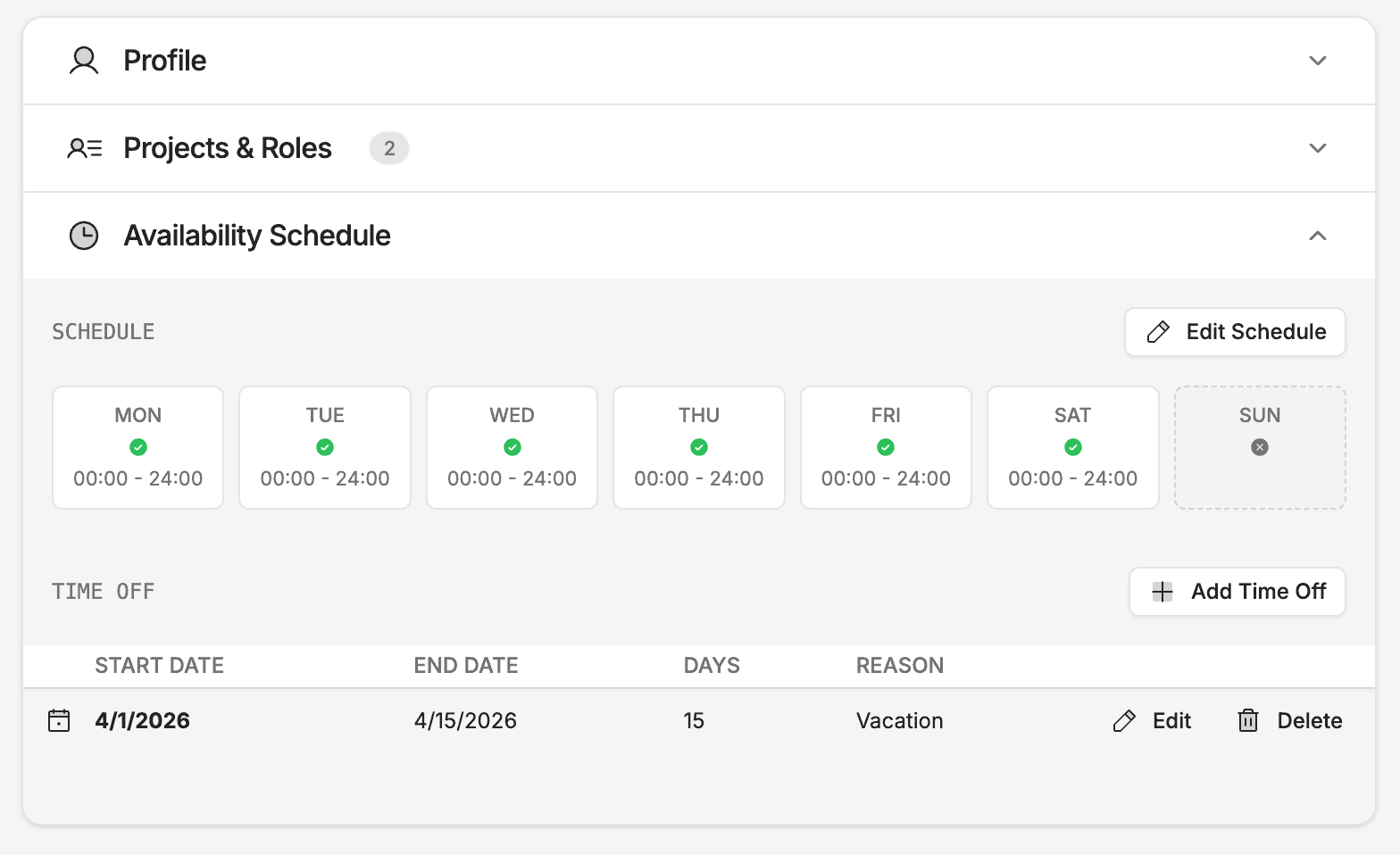
Availability in Scheduling
Driver availability feeds directly into the usage plan scheduler. The Auto Assign feature uses availability data to avoid assigning drivers to shifts during their days off or outside working hours.
Tips
- Keep availability up to date — inaccurate data leads to scheduling conflicts.
- Activate drivers per project so only the relevant drivers appear in each project's usage plans.
- Review driver workload in the Drivers View of the usage plan schedule to ensure balanced assignments.