Overview Tab
The at-a-glance view of a usage plan showing mileage progress, key metrics, and today's schedule.
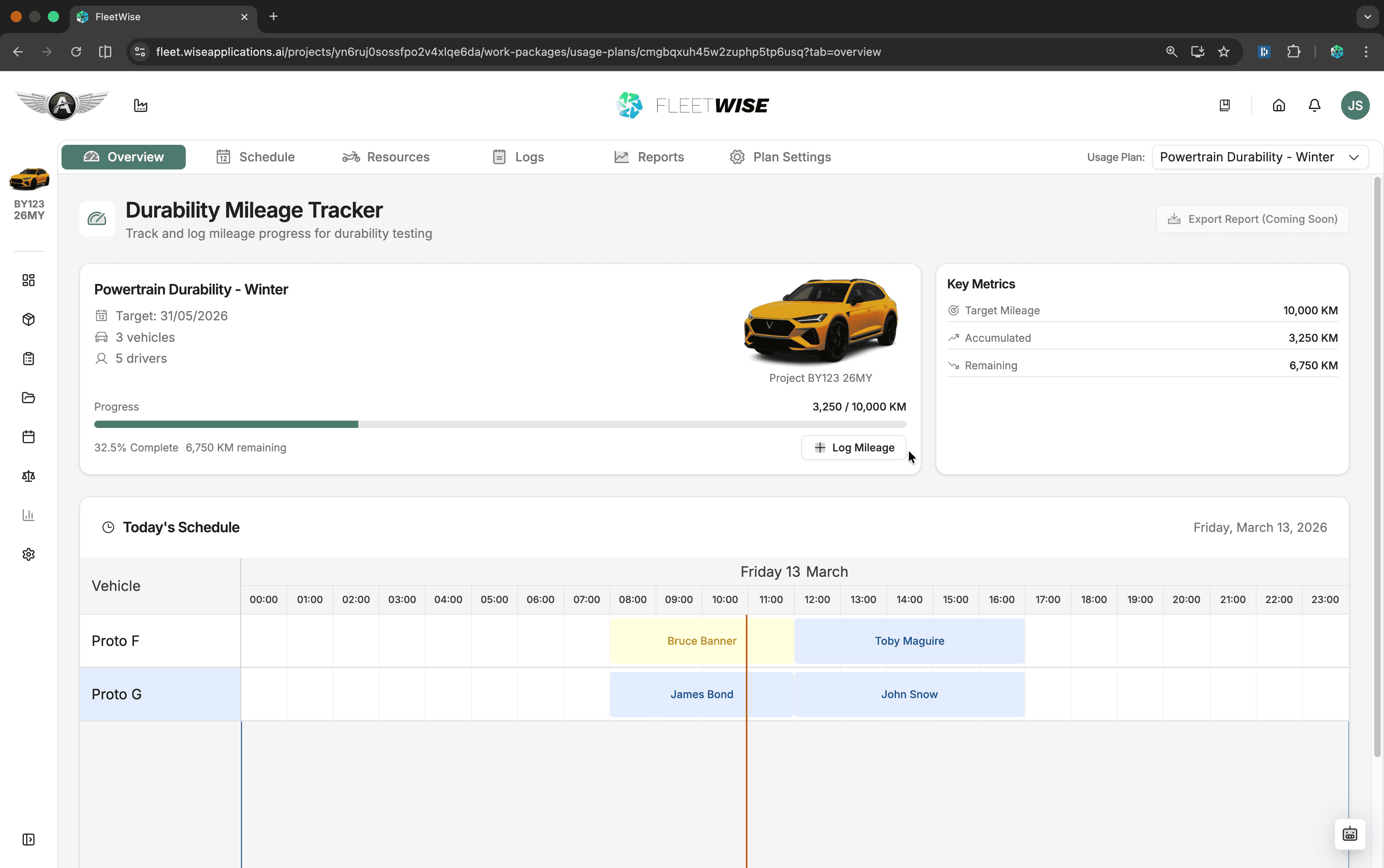
The Overview tab is the first thing you see when you open a usage plan. It gives you a quick pulse on progress, key metrics, and what is happening today — without needing to dig into the schedule or logs.
What the Overview Shows
| Section | What You See |
|---|---|
| Plan Header | Plan name, description, and the parent project |
| Key Metrics | Target mileage, accumulated mileage, and remaining mileage |
| Progress Bar | Visual progress indicator with percentage complete and KM remaining |
| Today's Schedule | A timeline showing which drivers are assigned to which vehicles for today's shifts |
Key Metrics
The metrics card on the right side of the overview displays three numbers:
| Metric | How It's Calculated |
|---|---|
| Target Mileage | The KM target you set in Plan Settings. This is the total mileage goal for the entire plan. |
| Accumulated | The sum of all logged mileage across every vehicle in the plan. Each log entry contributes its distance (end mileage minus start mileage). |
| Remaining | Target minus accumulated. Shows zero once the target is reached. |
Progress is calculated as accumulated / target and displayed as a percentage on the progress bar. If no target is set, the metrics card shows accumulated mileage only.
All Vehicles Contribute
Accumulated mileage is the combined total from every vehicle in the plan. If the plan has three vehicles and each logs 1,000 KM, the accumulated total is 3,000 KM against the single plan target.
Today's Schedule
Below the metrics, the overview shows a timeline of today's shifts. Each row represents a vehicle, and shift blocks show the assigned driver and time window.
Use this to quickly check:
- Who is driving which vehicle right now
- Whether all shifts for today are assigned
- If there are any gaps in coverage
For full schedule management — generating shifts, auto-assigning drivers, and editing across date ranges — go to the Schedule tab.
Using the Overview
- Daily check-in: Open the overview at the start of each day to see progress and today's plan at a glance.
- Stand-up summary: Use the metrics and today's schedule as a quick briefing for team stand-ups.
- Falling behind? If the progress bar shows you are behind target, consider adding more shifts or drivers via the Schedule, or check if vehicles are being under-utilised in Resources.
- Log mileage promptly: The overview is only as accurate as your log entries. Encourage drivers to log mileage after each shift.
Related
- Targets and Progress — how targets work, how to set them, and how to structure targets across multiple plans
- Log Entries — record mileage that feeds the progress metrics
- Reports — detailed charts and breakdowns beyond the overview