Work Package Details
Navigate the work package detail view — general information, resources, usage plans, access control, documents, and activity.
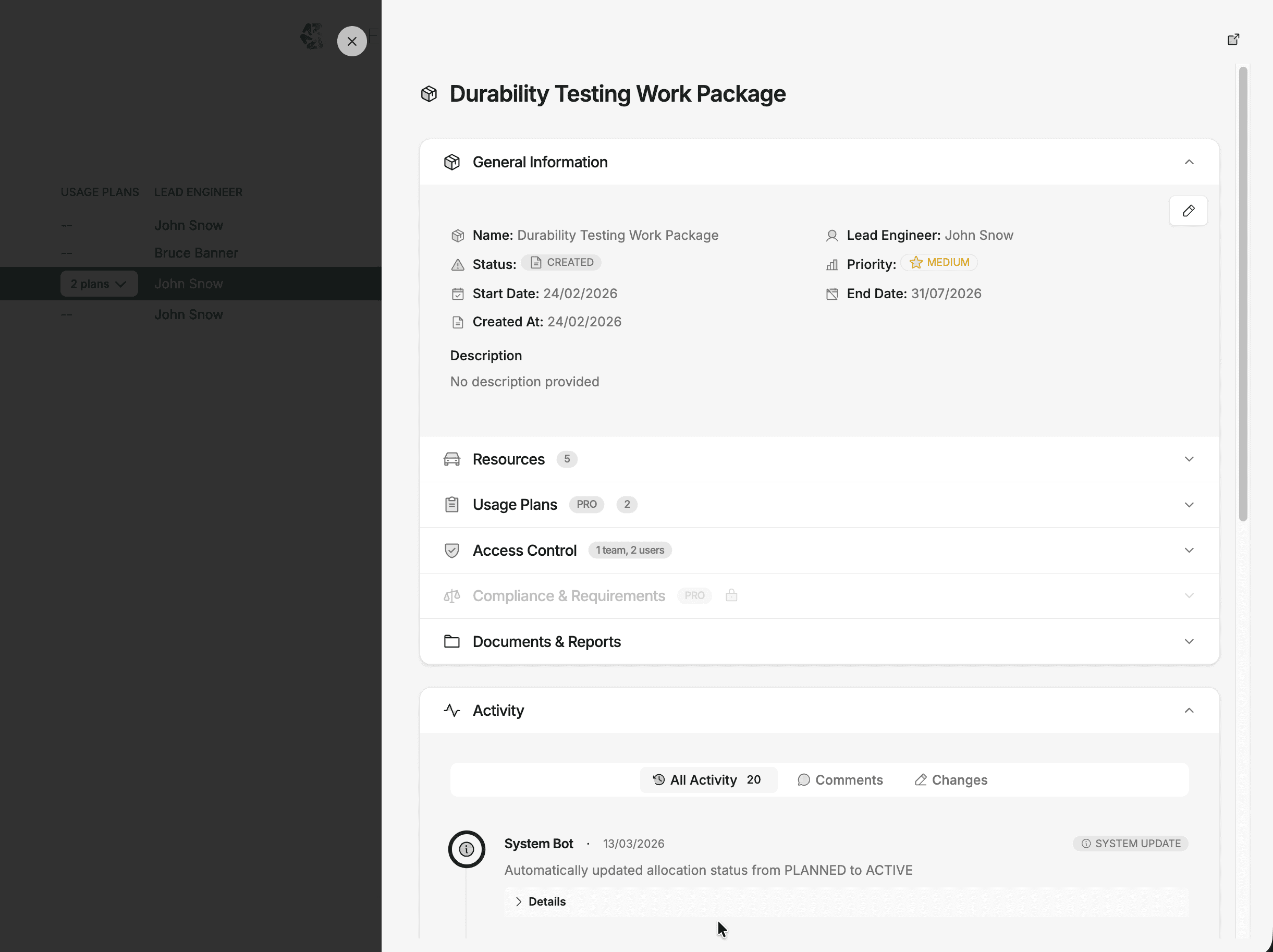
The work package detail view brings together all the information and tools for a specific testing activity. Open it by clicking any work package row in the list.
General Information
The top section shows the core fields for the work package:
| Field | Content |
|---|---|
| Name | Work package title |
| Lead Engineer | The person responsible for this work package |
| Status | Current status (e.g. Created, Active, Completed) |
| Priority | Priority level (e.g. Low, Medium, High) |
| Start Date | When the work package period begins |
| End Date | When the work package period ends |
| Created At | Date the work package was created |
| Description | Objectives, scope, and any relevant context |
Click the edit icon to modify these fields. Editing requires the appropriate project role — Owner, Management, or Fleet Coordinator can edit any work package, while a Member can edit work packages they created.
Resources
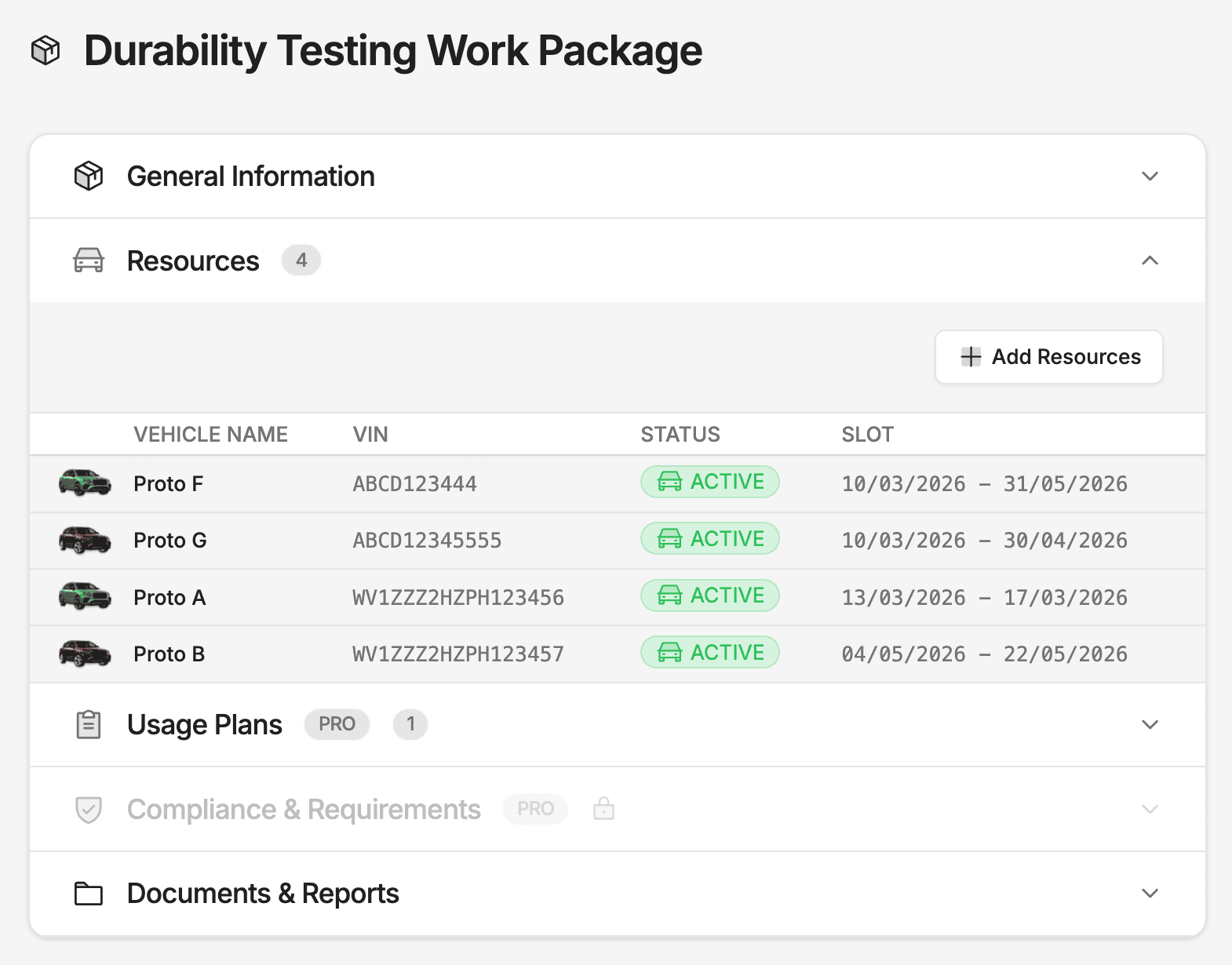
Lists the vehicles linked to this work package. Vehicles can arrive here through two paths:
- Direct assignment — if you have the permission, click Add Resources to assign vehicles directly to the work package. Fleetwise creates the underlying request and allocation records automatically so scheduling and audit data stay consistent.
- Request flow — submit a vehicle request linked to this work package. Once the request is allocated, the vehicle appears here. You can start a request directly from this section by clicking the Raise Request button, which opens the request creation form with the work package pre-filled.
See Key Concepts — Workflow Variations for more detail on when each path applies.
Raise Request Shortcut
The Raise Request button appears if you have request creation permission. It opens the new request form in a new tab with the work package already linked — you do not need to select it manually.
Usage Plans
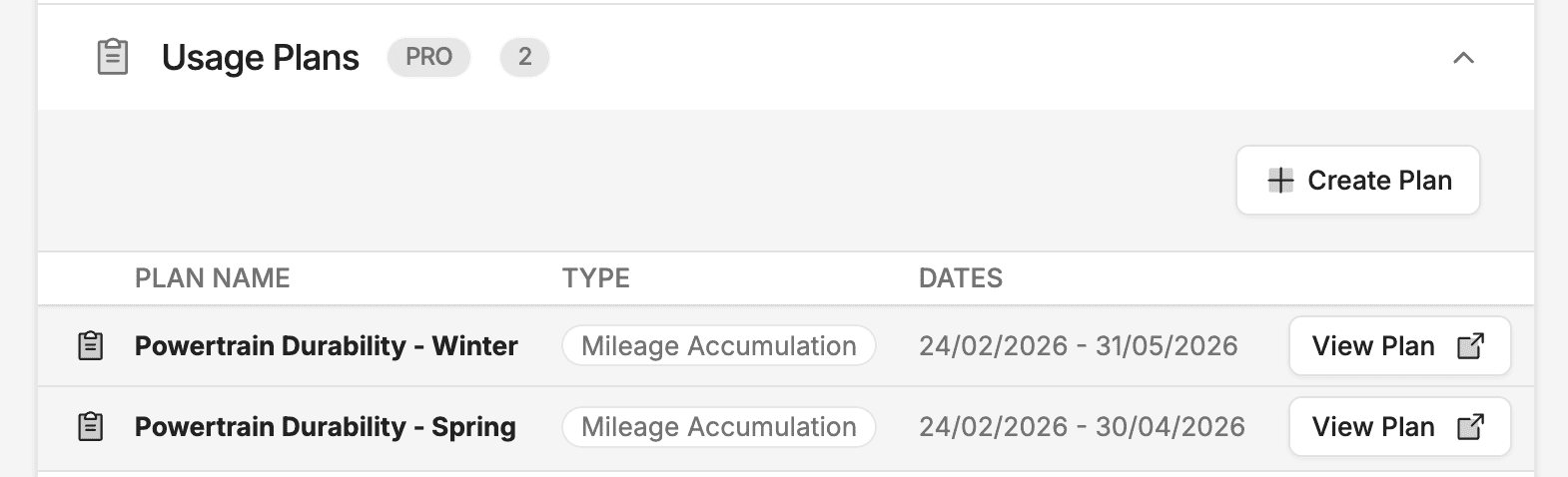
Lists all usage plans attached to this work package. Click View Plan to open the Usage Plan and view its schedule, resources, logs, and reports. You can create a new usage plan directly from this section if you have edit permission.
Access Control
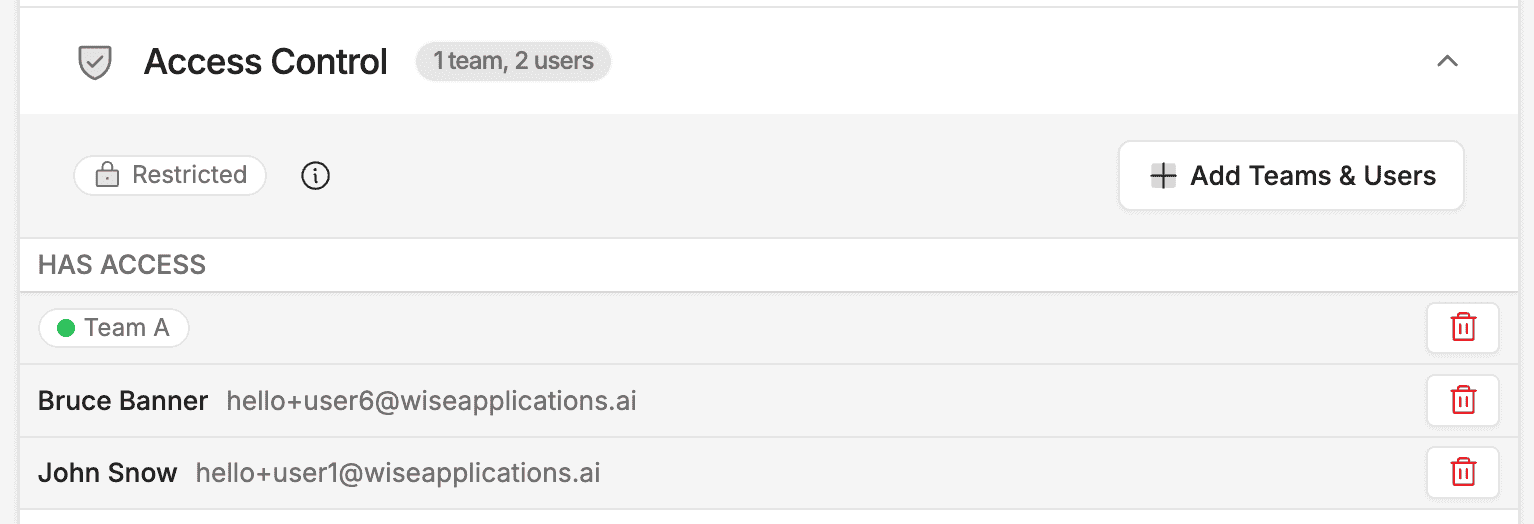
The Access Control section lets you restrict who can see this work package and its usage plans. By default, work packages are visible to everyone in the project (Project-wide). Adding teams or users switches the work package to Restricted mode.
| Visibility | Badge | Who can see the work package |
|---|---|---|
| Project-wide | Globe icon | Everyone in the project |
| Restricted | Lock icon | Only the listed teams and users (plus Admins and elevated roles) |
How access rules work
| Rule configuration | Effect |
|---|---|
| No rules | Visible to everyone in the project |
| Teams only | Only members of assigned teams can view |
| Users only | Only explicitly listed users can view |
| Teams + users | Team members and listed users (union of both) |
Admins and elevated project roles (Owner, Management, Fleet Coordinator) always retain access regardless of rules.
Managing access
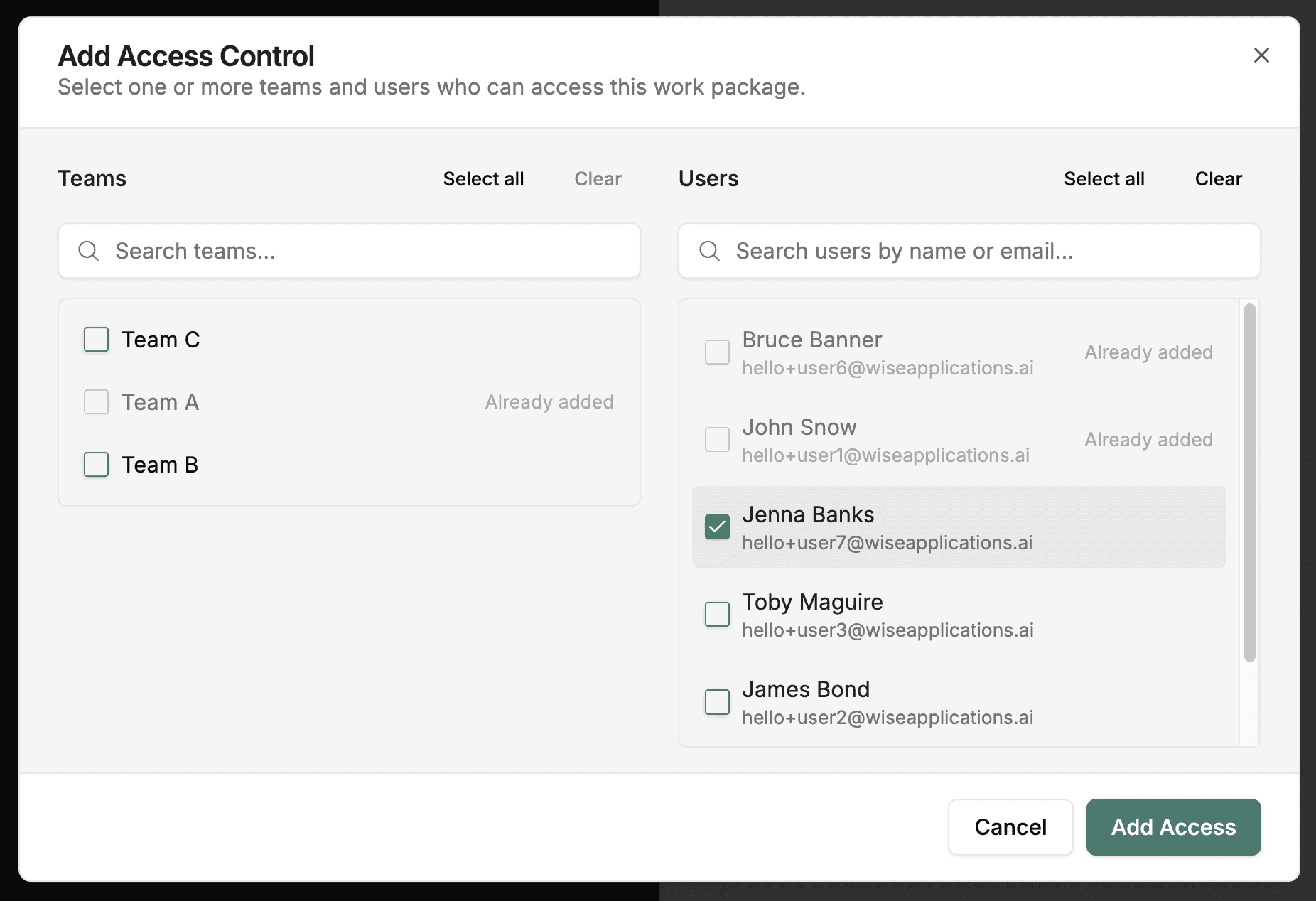
Click Add Teams & Users to open a dialog where you can select teams and individual users. Teams and users that already have access are disabled in the dialog. To remove access, click the delete button next to the team or user in the access table.
Inherited by Usage Plans
Usage plans inherit the access rules of their parent work package. You do not set access on usage plans separately — restricting a work package automatically restricts all of its usage plans.
Compliance & Requirements
PRO Feature - coming soon
Compliance & Requirements is available on PRO plans. It provides compliance checks and requirement tracking for the work package.
Documents & Reports
Upload and manage files related to the work package — test plans, specifications, diagnostic reports, or any reference material the team needs.
Activity
The activity section provides a running log of everything that happens on the work package, filtered by tabs:
| Tab | Shows |
|---|---|
| All Activity | Combined feed of every event below |
| Comments | Discussion thread for team communication |
| Changes | Audit trail of field changes (status, dates, assignments) |
Tips
- Keep the description and documents up to date so the team has easy access to test plans and specifications.
- Use the activity log to communicate with team members and track decision history.
- Monitor linked resources and usage plans to ensure the work package is progressing on schedule.