Vehicles
Vehicle Map
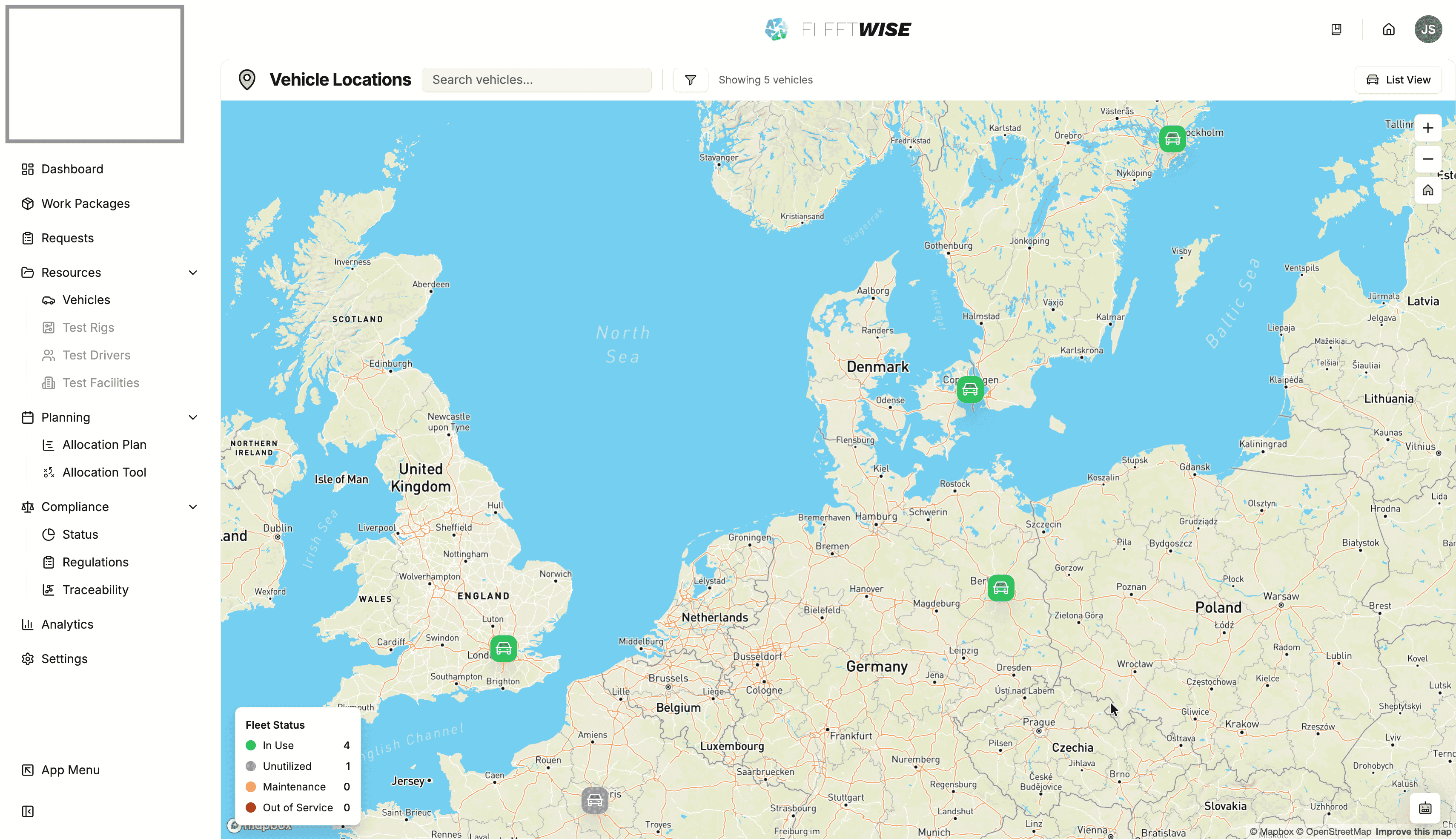
Use the map view to see vehicle locations and geographic distribution across your fleet.
The vehicle map provides a geographic view of your project fleet. Use it to see where vehicles are located, identify nearby availability, and plan logistics.
Accessing the Map
Navigate to Resources → Vehicles and click the Map tab or link in the toolbar.
Reading the Map
- Each pin represents a vehicle with a known location.
- Pin colour indicates the vehicle's current status (active, in maintenance, etc.).
- Click a pin to see a summary popup with the vehicle name, status, and quick link to the vehicle detail page.
- Zoom and pan to explore different regions.
Filters
The map respects the same filters as the vehicle list:
- Status filter — show only active, inactive, or maintenance vehicles.
- Search — highlight a specific vehicle by name or VIN.
- Tag filters — narrow by attribute tags like location or equipment.
Use Cases
| Scenario | How the Map Helps |
|---|---|
| Planning a test | Find available vehicles near the test facility |
| Fleet overview | See geographic distribution of the fleet at a glance |
| Logistics | Identify vehicle clusters for transport planning |
Location Data
Vehicle locations are based on latitude and longitude coordinates stored against each vehicle. You can set or update coordinates manually in the vehicle's edit dialog. If a vehicle does not appear on the map, it may not have coordinates recorded.
Tips
- Use the map alongside the Schedule View to cross-reference geographic and temporal availability.
- If many vehicles are missing from the map, check that location data is being captured during vehicle registration or via integrations.