Vehicle Details
View and edit vehicle information, specs, allocation history, maintenance, and activity log.
The vehicle detail page shows everything about a single vehicle — its identity, specifications, allocations, maintenance history, and a running activity log. Open it by clicking any vehicle row in the vehicle list.
Accessing Vehicle Details
Navigate to Resources → Vehicles and click a vehicle row, or search for a vehicle by name or VIN.
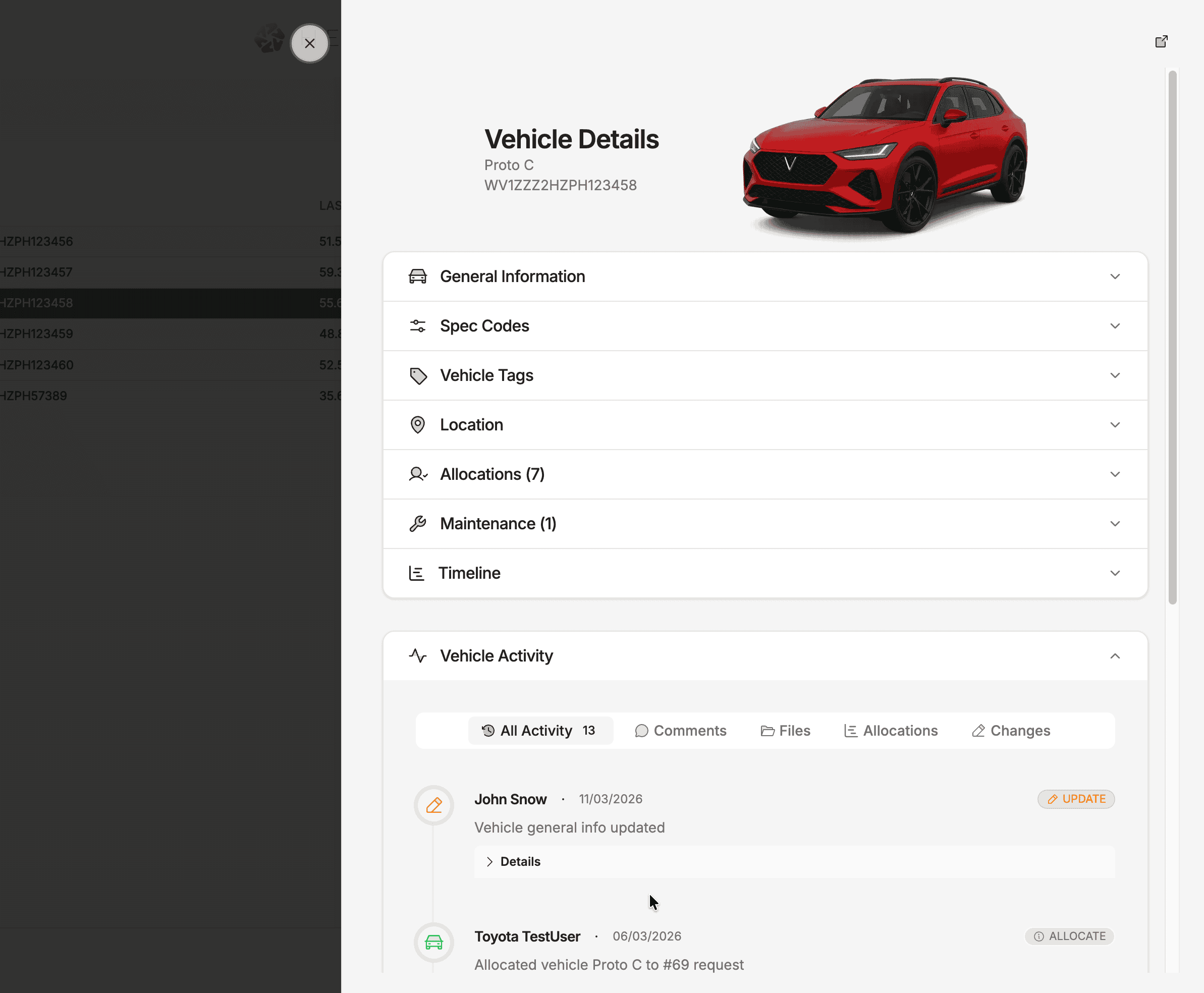
Page Sections
General Information
The General Information accordion is split into two sub-sections:
Basic Information
| Field | Description |
|---|---|
| Name | Short identifier (e.g. VP1-234567) |
| VIN | Full vehicle identification number |
| Project | The project this vehicle belongs to |
Status & Location
| Field | Description |
|---|---|
| Location | Latitude and longitude coordinates, or a text location |
| Status | Active, Inactive, or other configured status |
| Available From | Start date for when the vehicle can be allocated |
| Available To | End date for when the vehicle can be allocated |
Spec Codes
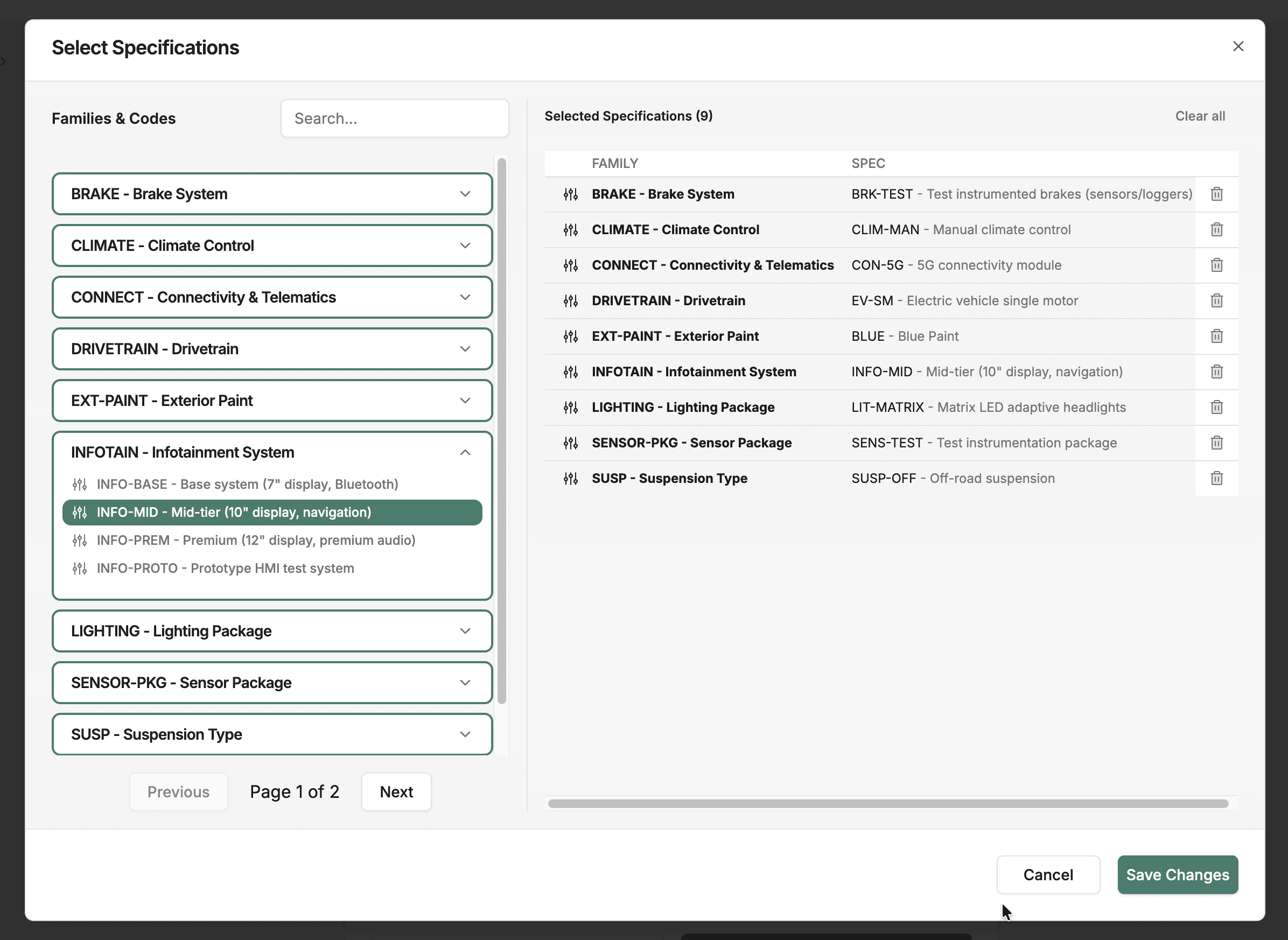
The specifications section lists all spec codes assigned to the vehicle. These are the technical identifiers (powertrain, exterior, interior, etc.) that the allocation engine uses for matching.
Vehicle Tags
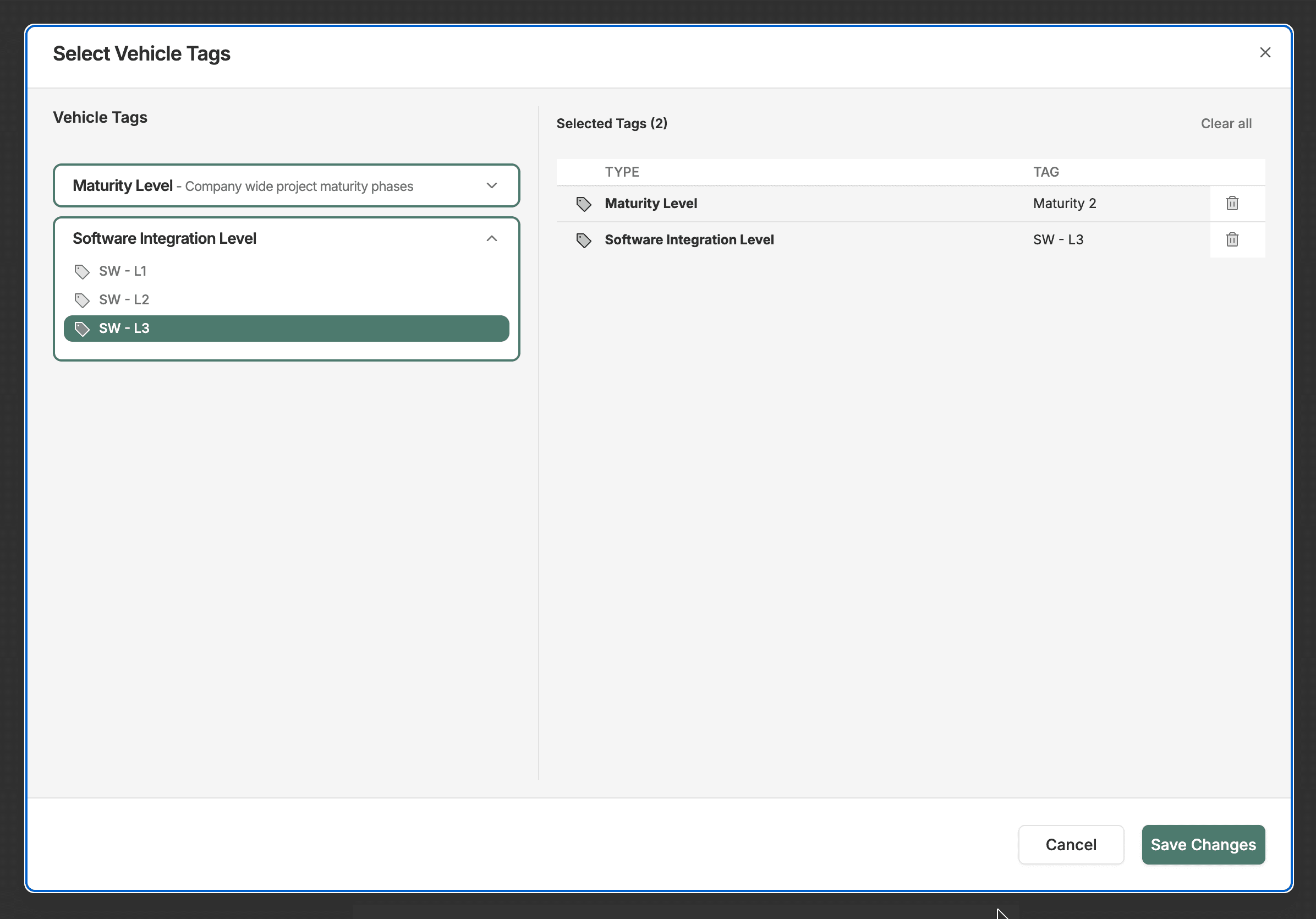
Attribute tags assigned to the vehicle. Tags are used for filtering in the vehicle list and for matching against request requirements.
Allocation History
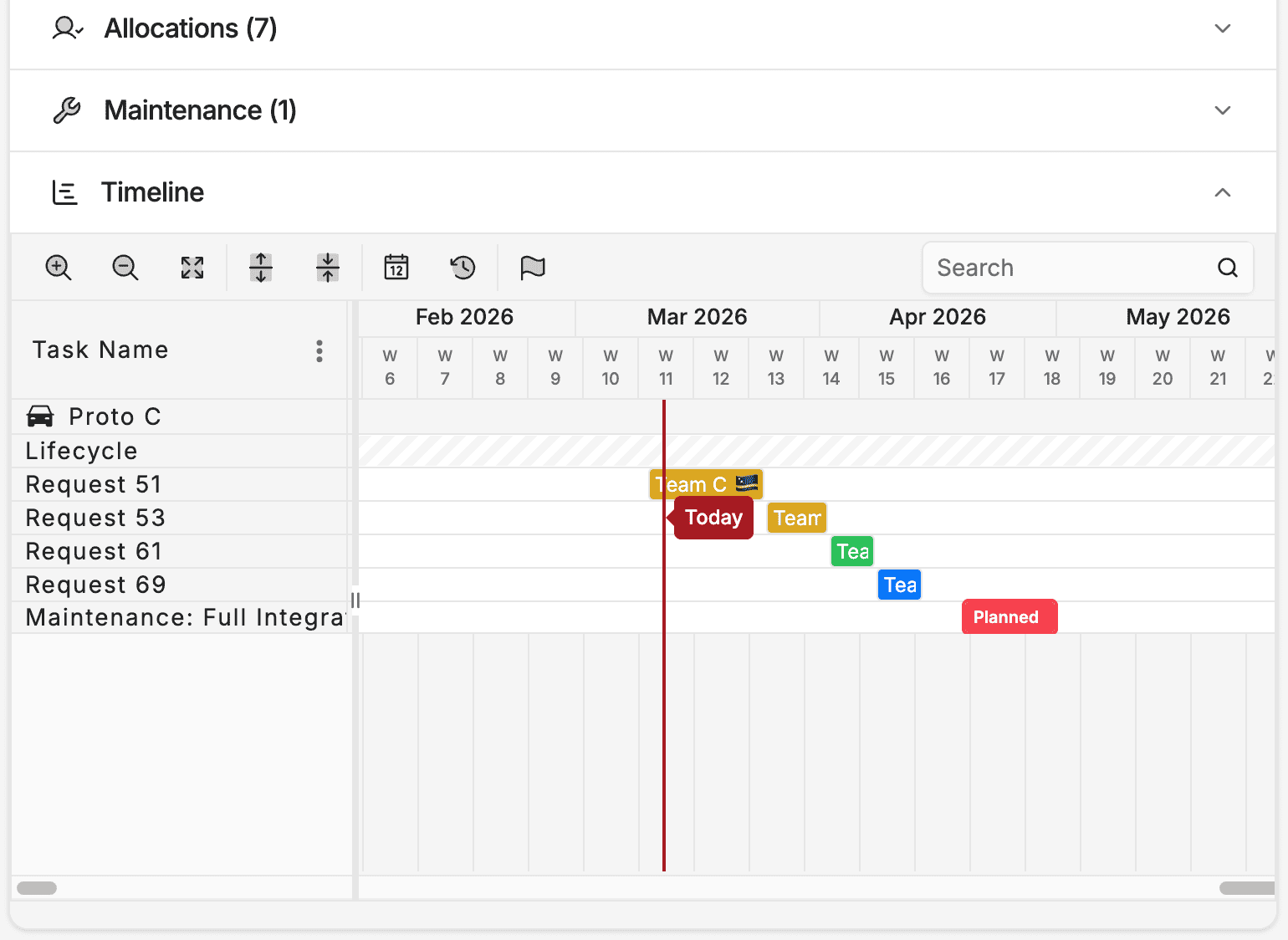
A chronological list of all allocations involving this vehicle — past, current, and planned. Each row links to the allocation detail and the associated request.
Maintenance Events
Maintenance events linked to this vehicle, with dates, type, and status. See Maintenance Events for details on managing these.
Vehicle Activity
The activity section is a running log of everything that happens to the vehicle throughout its lifecycle. Use it to:
- Track changes — see a timestamped history of status updates, spec changes, allocation assignments, and maintenance events.
- Have conversations — leave comments and tag team members to discuss issues, handover notes, or test observations.
- Attach files — upload diagnostic logs, inspection reports, images, or any supporting documents directly against the vehicle record.
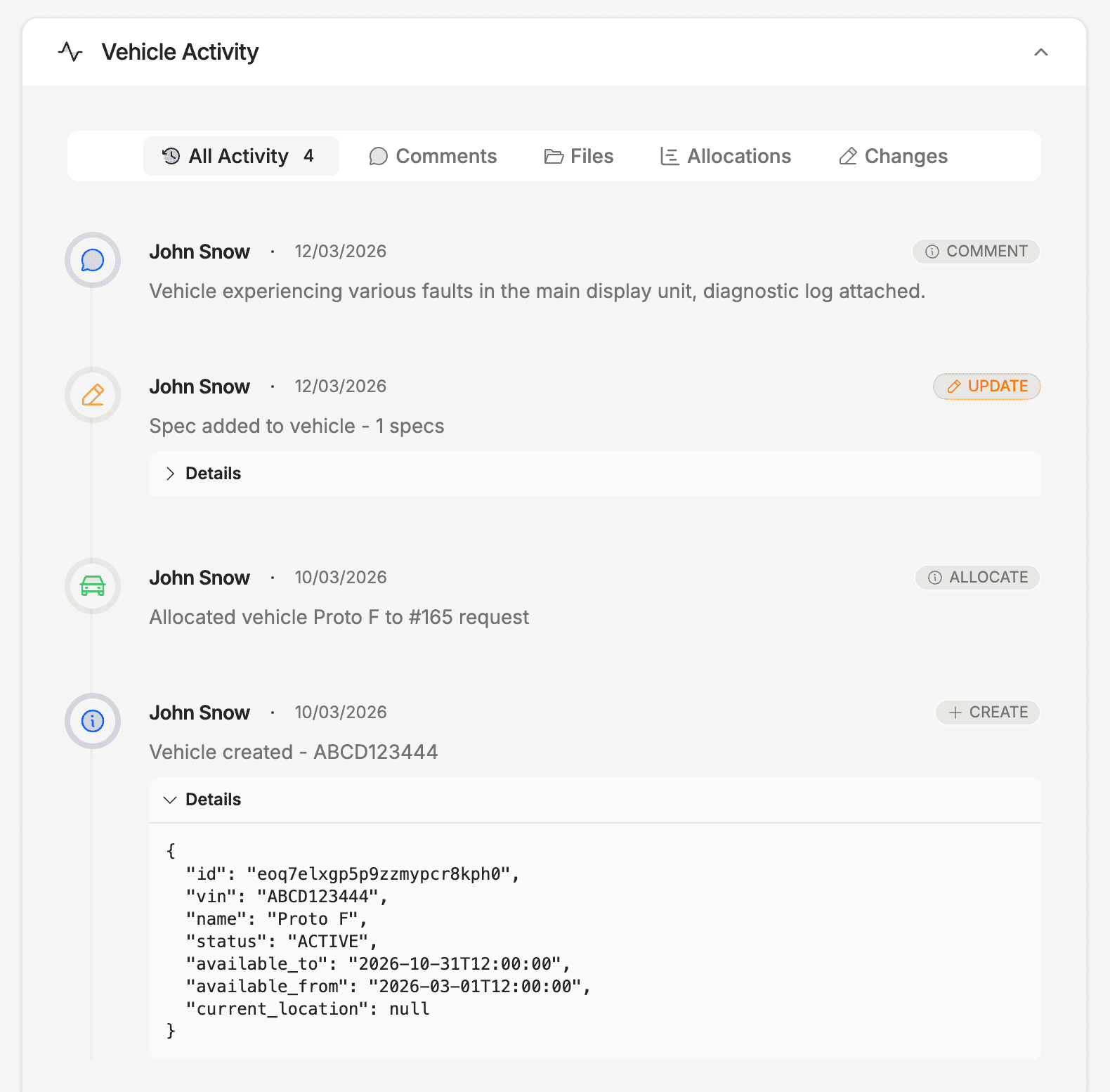
This makes the activity log a useful reference during audits or when onboarding someone to a vehicle they haven't worked with before.
Editing a Vehicle
Click Edit Basic Info in the General Information section to open the edit dialog. You need the Vehicle Edit permission. The dialog lets you update:
| Field | Description |
|---|---|
| Vehicle Name | Short identifier for the vehicle |
| VIN | Vehicle identification number (automatically uppercased) |
| Status | Active or Inactive |
| Vehicle Lifecycle | Availability start and end dates (constrained to project dates) |
| Latitude | Location latitude coordinate (optional) |
| Longitude | Location longitude coordinate (optional) |
| Vehicle Image | Photo from the project image library |
Location coordinates
Latitude and longitude must both be provided if you want to set a location. If only one is entered, the form shows a validation error. Clear both fields to remove the location.
Impact of Edits
Changing spec codes or availability dates may affect existing allocations. Review active allocations before making changes that narrow the vehicle's availability or remove spec codes.
Tips
- Keep vehicle names consistent with your project's naming convention for easier searching.
- Update the vehicle status promptly when a vehicle becomes unavailable.
- Use the activity log to document anything noteworthy — handover notes, test observations, or issues — so the vehicle's history is complete for future reference.