Schedule View
Use the Gantt-style schedule to visualise allocations, spot clashes, and manage timelines.
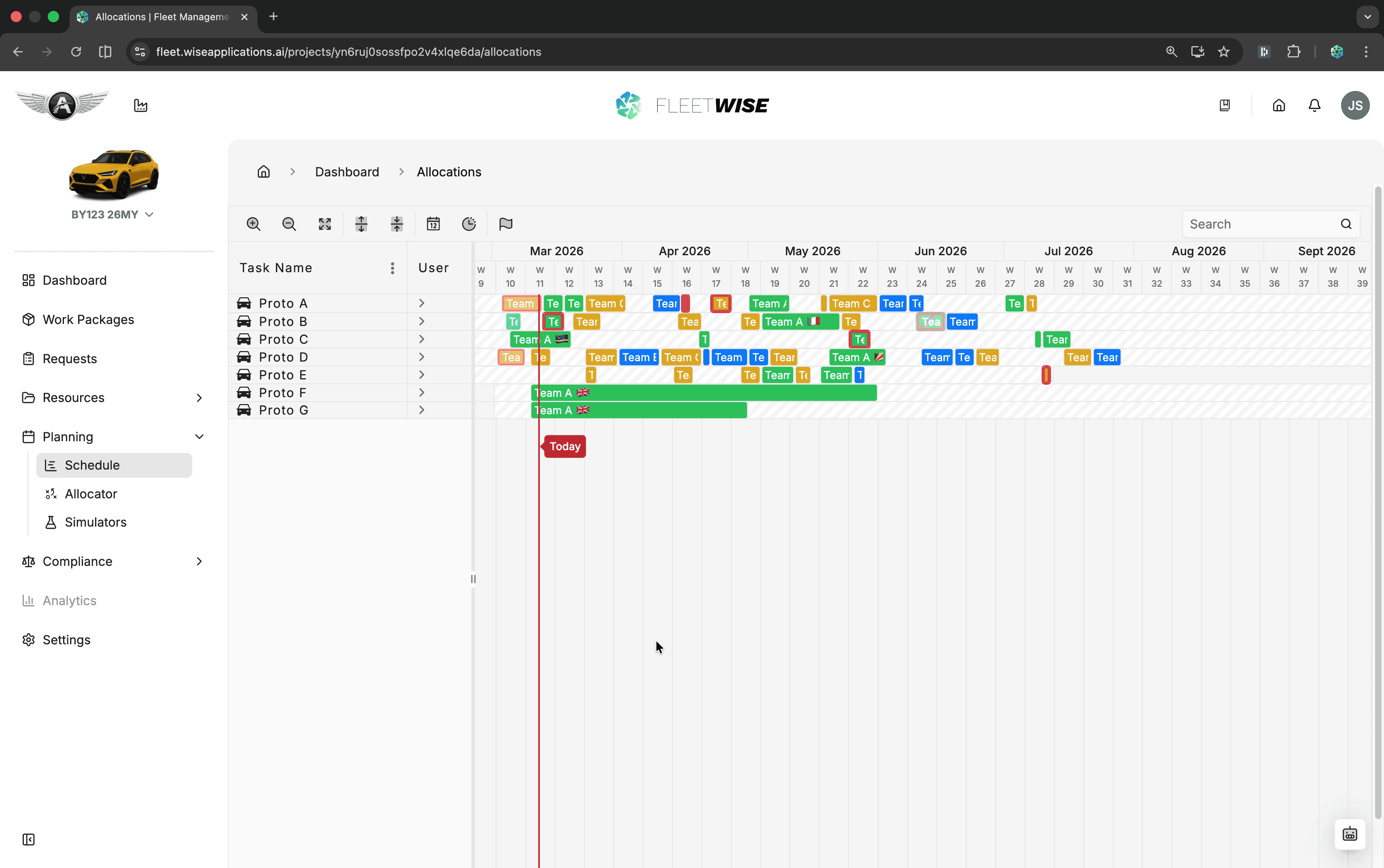
The schedule view gives you a Gantt-style timeline of all allocations and maintenance events across your project vehicles. Use it to spot availability gaps, identify clashes, and make informed allocation decisions.
Opening the Schedule
Navigate to Planning → Schedule in the project sidebar. The schedule loads with the current week in view.
Reading the Timeline
Each row represents a vehicle. Allocation blocks are coloured by team so you can quickly see which team each allocation belongs to. Maintenance events are shown as separate blocks on the same timeline.
Clashes
When two allocations overlap on the same vehicle, the schedule highlights the clash with a visual indicator. Hover over the clash to see the conflicting allocations.

Resolving Clashes
Clashes do not block allocation creation, but they indicate a scheduling conflict that needs coordinator attention. Click the clash indicator to review the overlapping allocations and decide which to adjust.
Interacting with Allocations
- Click an allocation block to open the allocation detail panel.
- Hover to see a summary tooltip with vehicle, request, dates, and status.
- From the detail panel you can view the linked request details.
Maintenance Visibility
Maintenance events appear on the same timeline so you can see when vehicles are unavailable. Maintenance blocks are read-only in the schedule view — manage them from the Maintenance Events page.