Workspaces
Workspace Dashboard
Overview of the workspace dashboard — key metrics, project list, and quick-access panels.
The workspace dashboard gives you a high-level view of activity across all projects in the workspace. Use it to monitor overall fleet health, spot trends, and jump into specific projects.
Accessing the Dashboard
Click the workspace name in the header or navigate to Workspaces → [Your Workspace]. The dashboard loads as the default view.
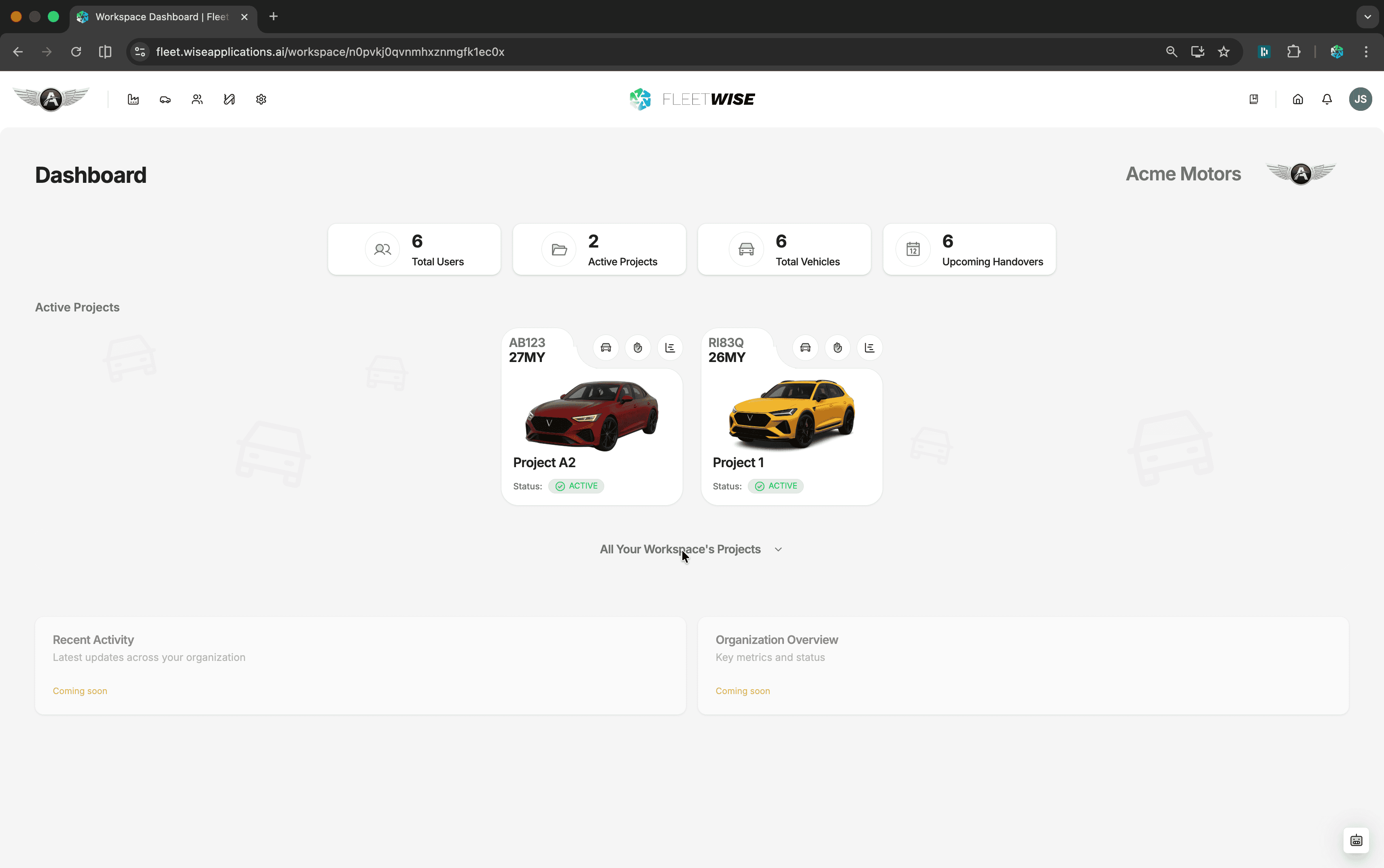
What the Dashboard Shows
| Panel | Content |
|---|---|
| Workspace Stats | High-level counts — total vehicles, active allocations, pending requests across all projects |
| Projects | Card grid of all projects in the workspace with quick-access links |
| Recent Activity | Timeline of recent actions across the workspace |
Navigating to a Project
Click any project card to open that project's Project Dashboard. You can also use the Projects link in the header to see a full project list with search and filter.
Tips
- Check the workspace dashboard at the start of each week for a cross-project overview.
- Use the activity timeline to stay informed about changes in projects you do not visit daily.
- If a project card is missing, you may not have access — ask a workspace Admin to add you.