Project Settings
Manage project information, timeline events, specifications, tags, and image gallery.
Project settings let you configure the data structures, team access, and visual assets for a specific project. Project Owners can access settings from the project sidebar.
Accessing Project Settings
Click Settings in the project sidebar. The settings hub shows all available categories.
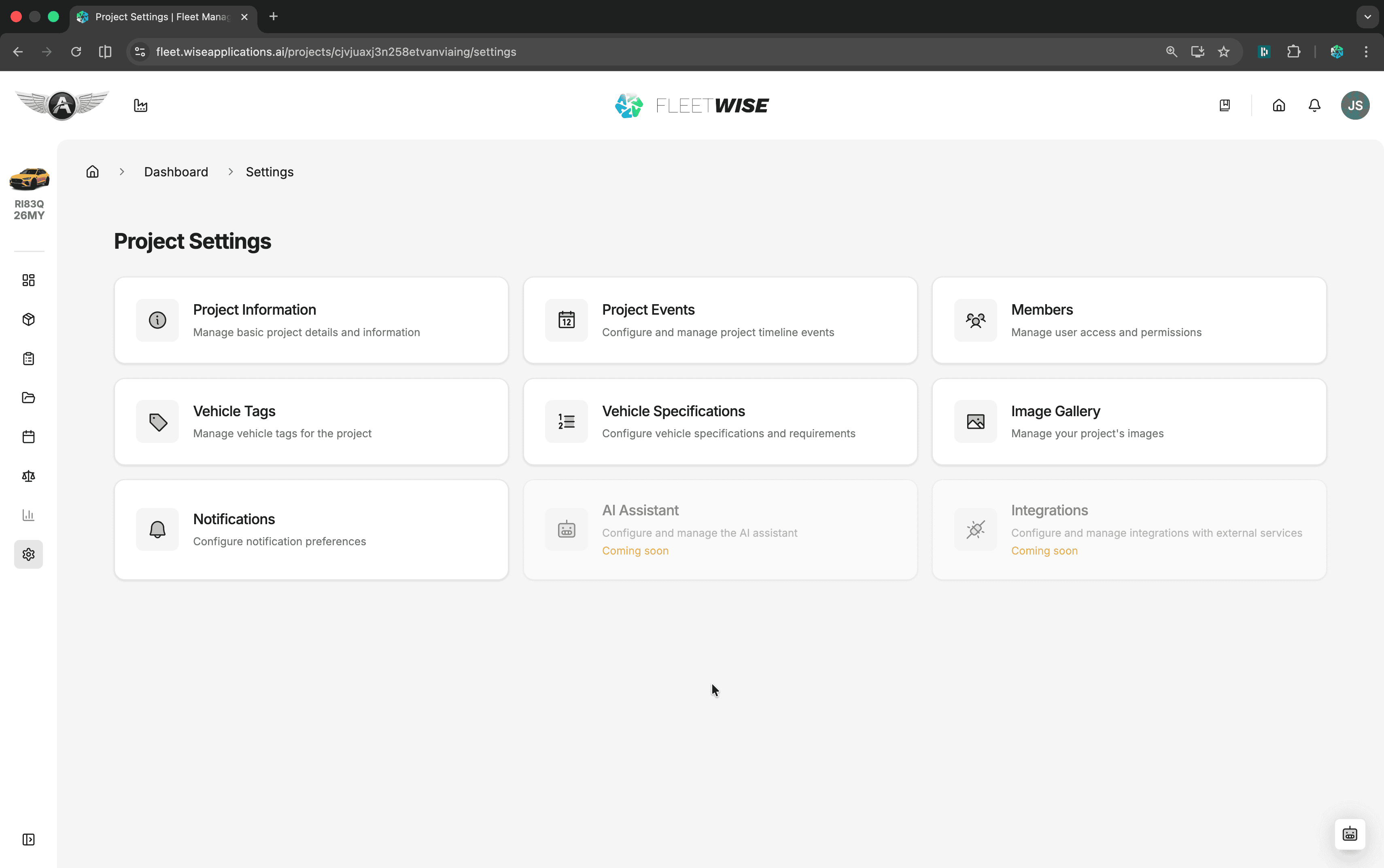
Setting Categories
Project Information
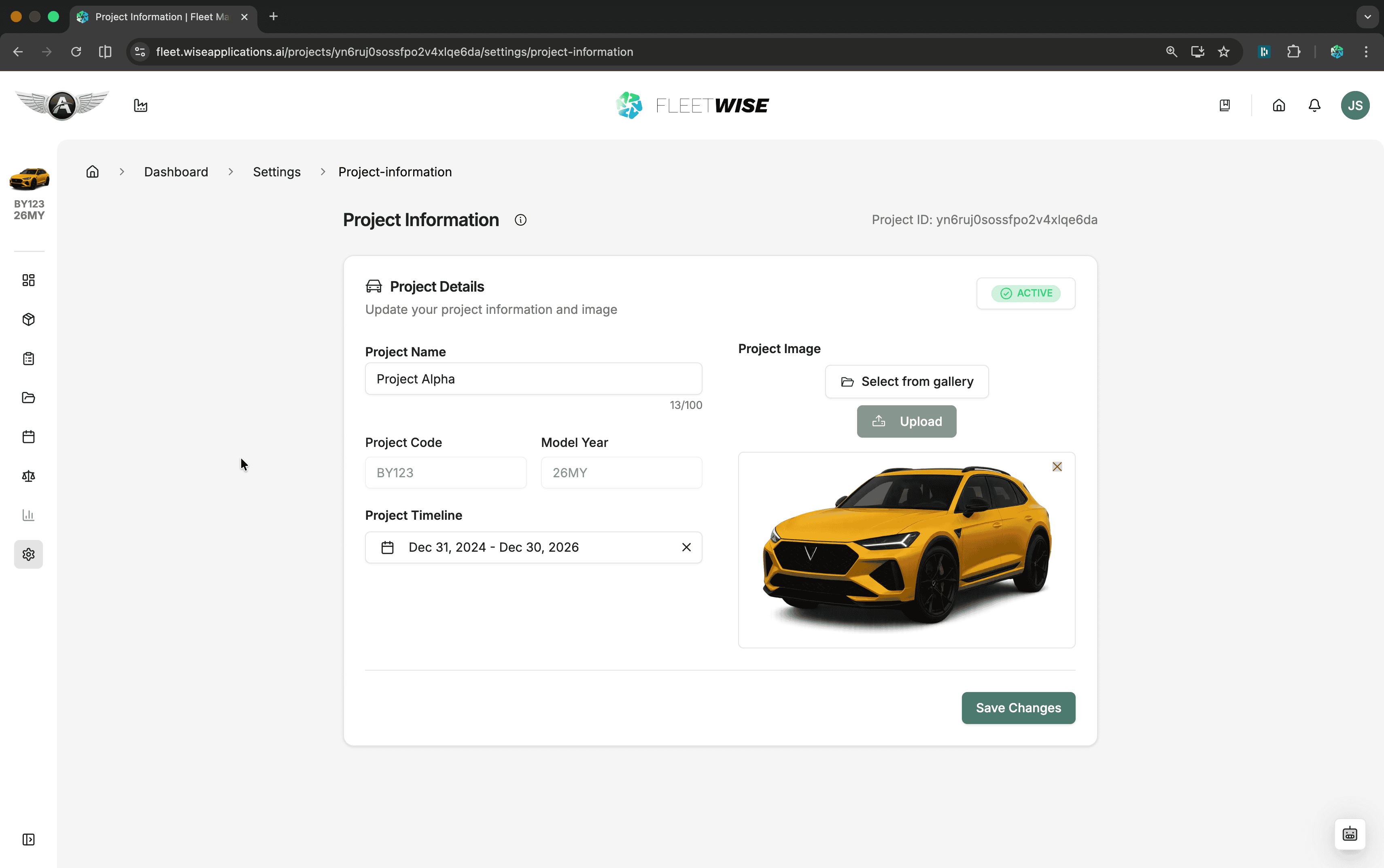
Edit the project name, description, start and end dates, and thumbnail image.
Date Changes
Changing the project start or end dates may affect vehicle availability windows and allocation date constraints. Review active allocations before narrowing the project timeline.
Project Events
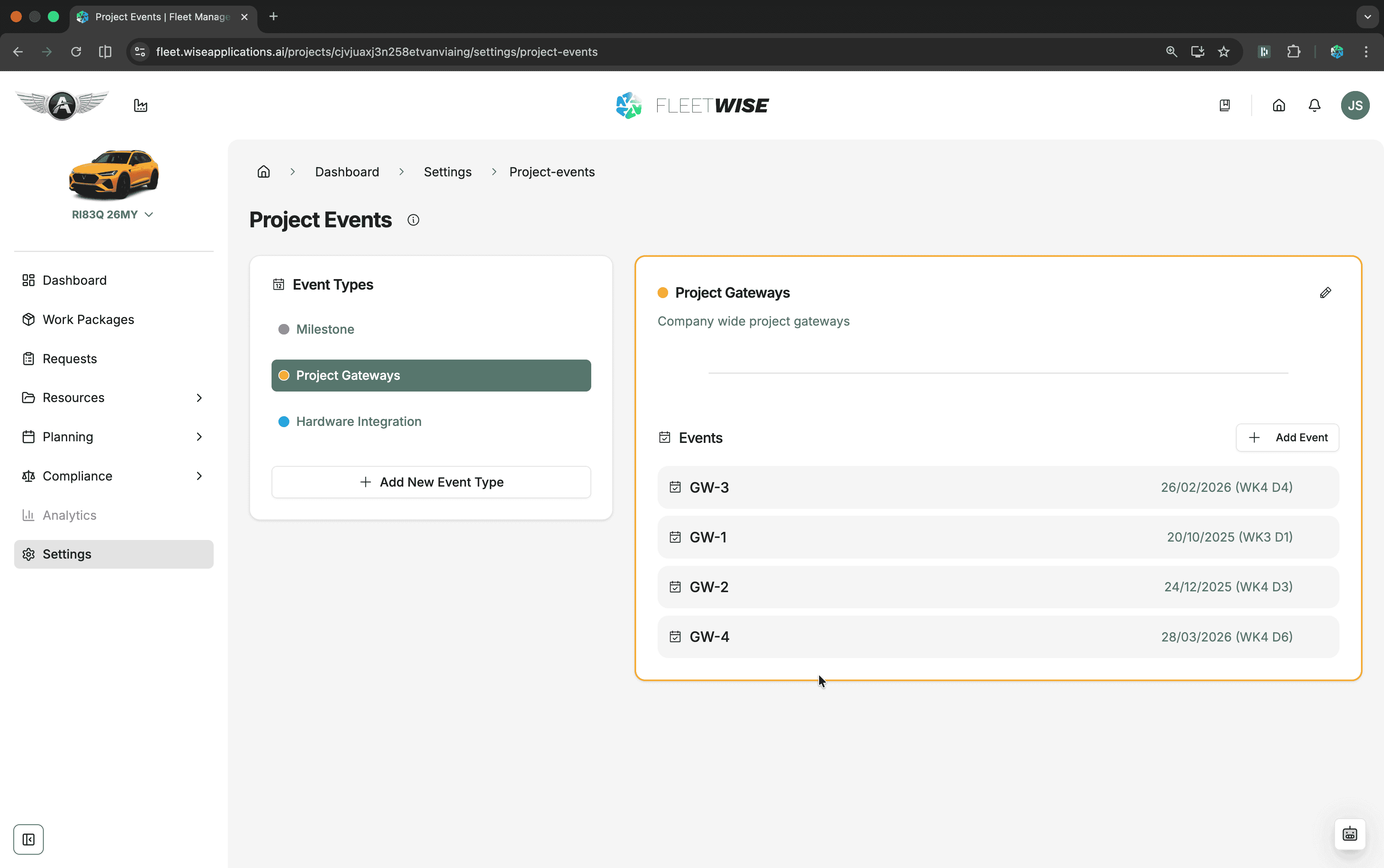
Manage timeline events and milestones for the project. Events appear on the project dashboard and provide context for scheduling decisions.
Members
Add, remove, and manage team member roles. See Project Members for details.
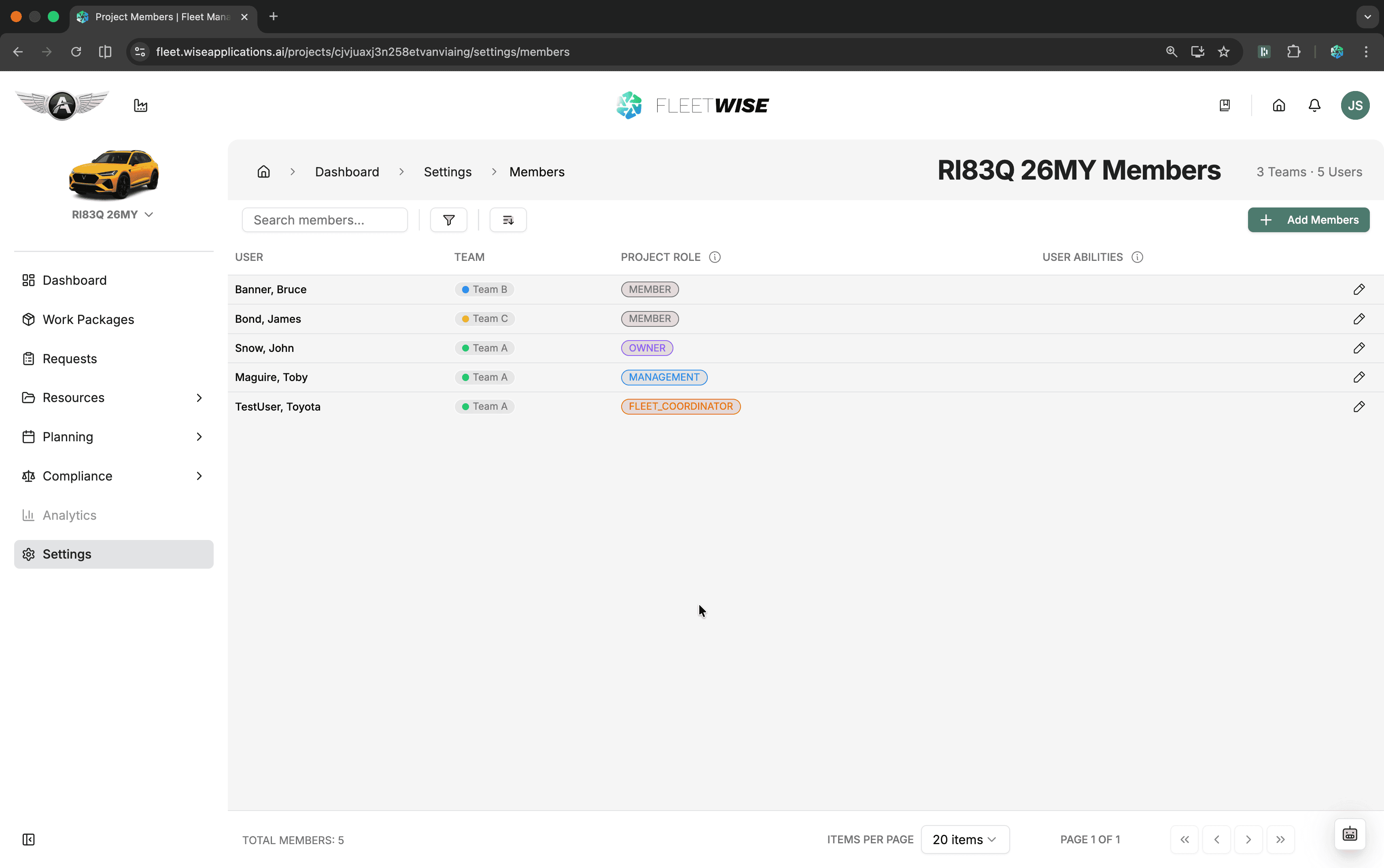
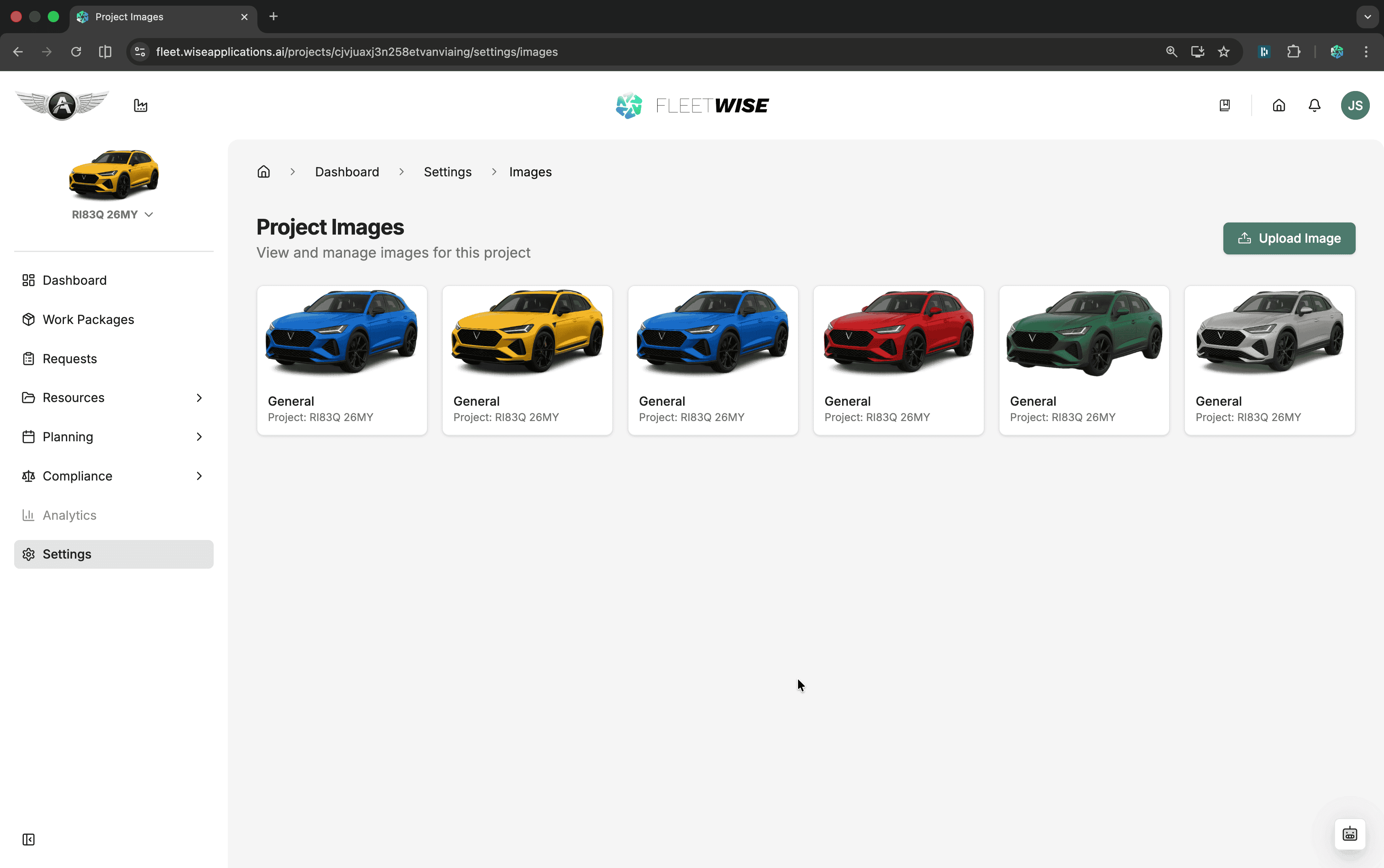
Image Gallery
Upload and manage images used across the project — vehicle photos, facility images, and other visual assets.
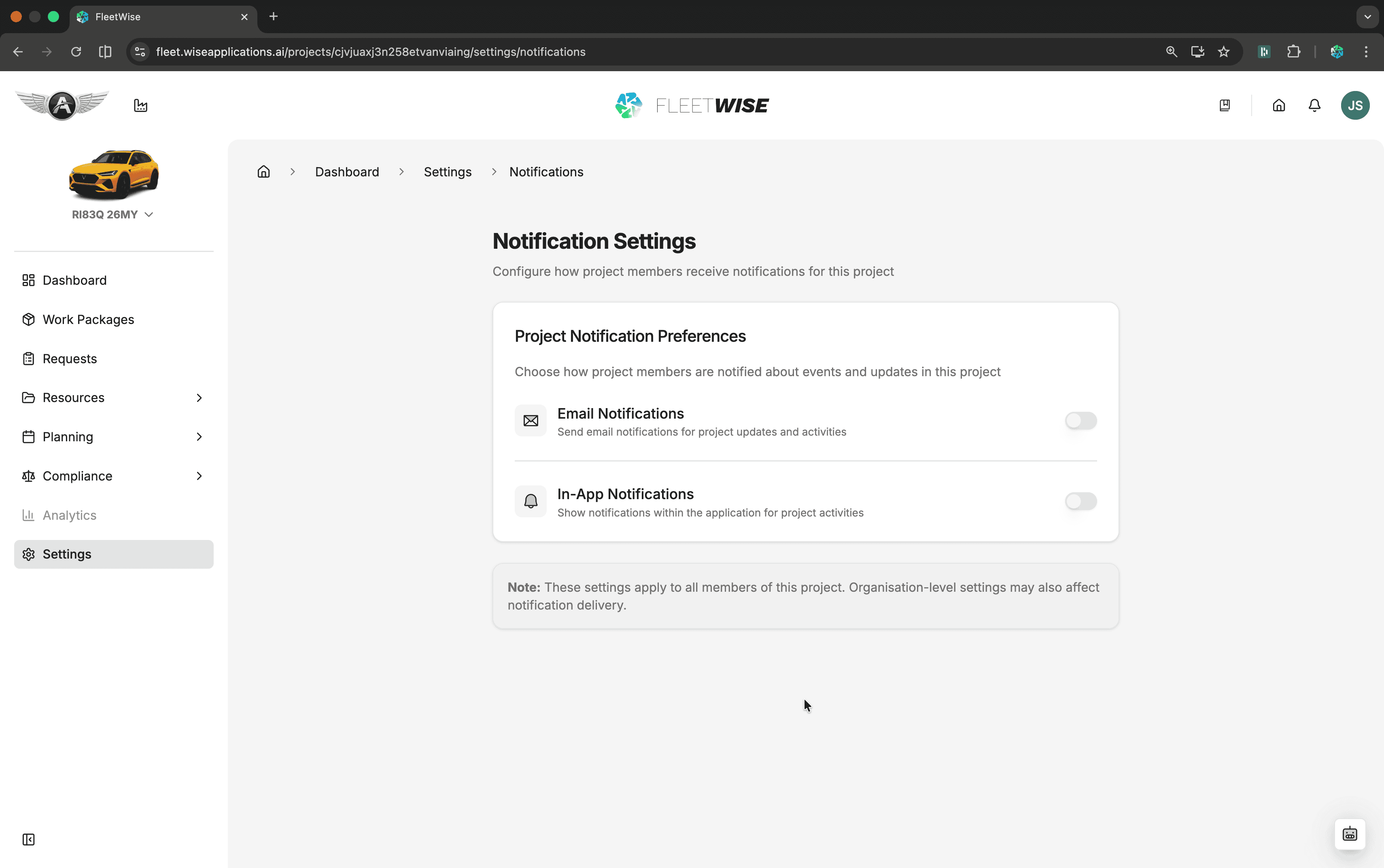
Notifications
Configure project-level notification preferences. See Notifications.
Vehicle Tags
Configure tag categories and values used for vehicle attributes. Tags are used for filtering and request matching. See Specifications and Attributes.
Specifications
Manage spec code families and values. Spec codes describe vehicle builds and drive the allocation matching engine. See Specifications and Attributes.
Tips
- Keep project events updated so the dashboard provides useful timeline context.
- Review member roles periodically to match current team responsibilities.