Workspace Settings
Configure workspace-level options including email previews, permissions, and integrations.
Workspace settings control organisation-wide configuration that applies across all projects. Only Workspace Admins can access these settings.
Accessing Workspace Settings
Click Settings in the workspace header navigation.
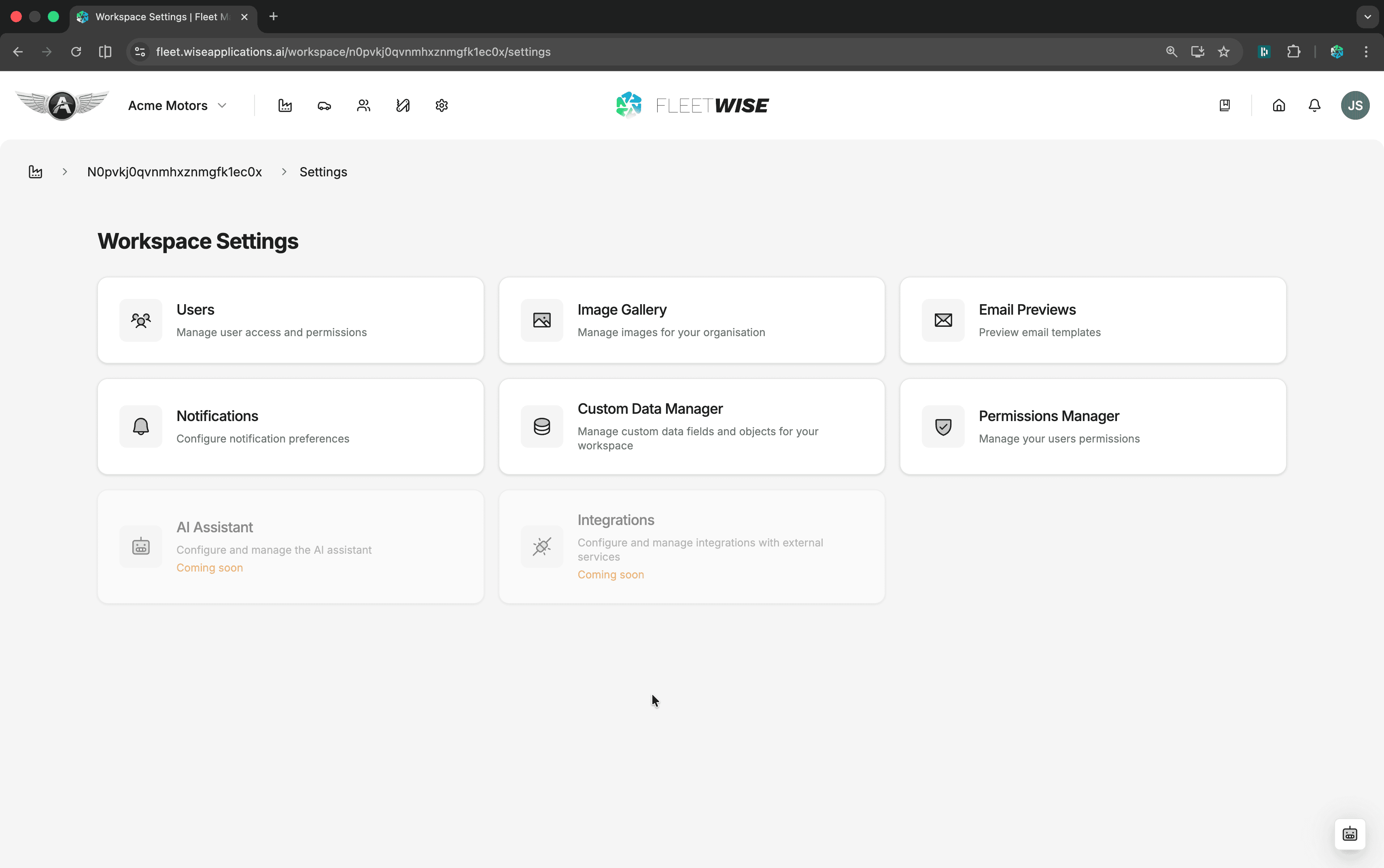
Setting Categories
Email Previews
Preview the email templates Fleetwise sends for allocation confirmations, handover notifications, request updates, user invitations, and vehicle alerts. Use this to verify branding and content before emails go out.

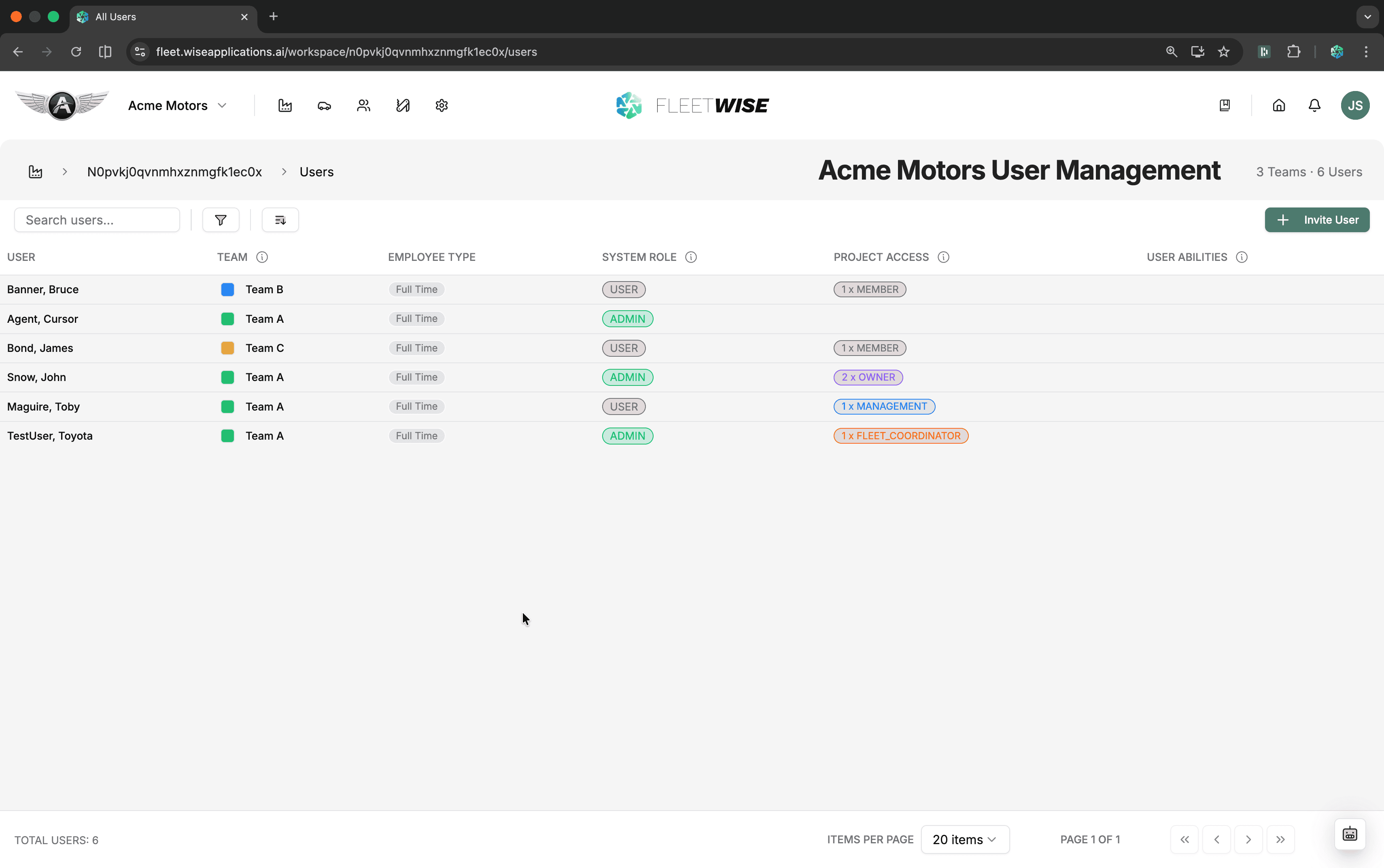
Users
Manage all workspace users — invite new members, update workspace roles (Admin or User), and review who has access. Users added here can then be assigned to projects with specific project roles.
Permissions Manager
Configure the default project roles (Member, Fleet Coordinator, Management, Owner) with granular permissions across feature groups. You can also create custom roles and assign them to users. See Roles & Permissions for details.
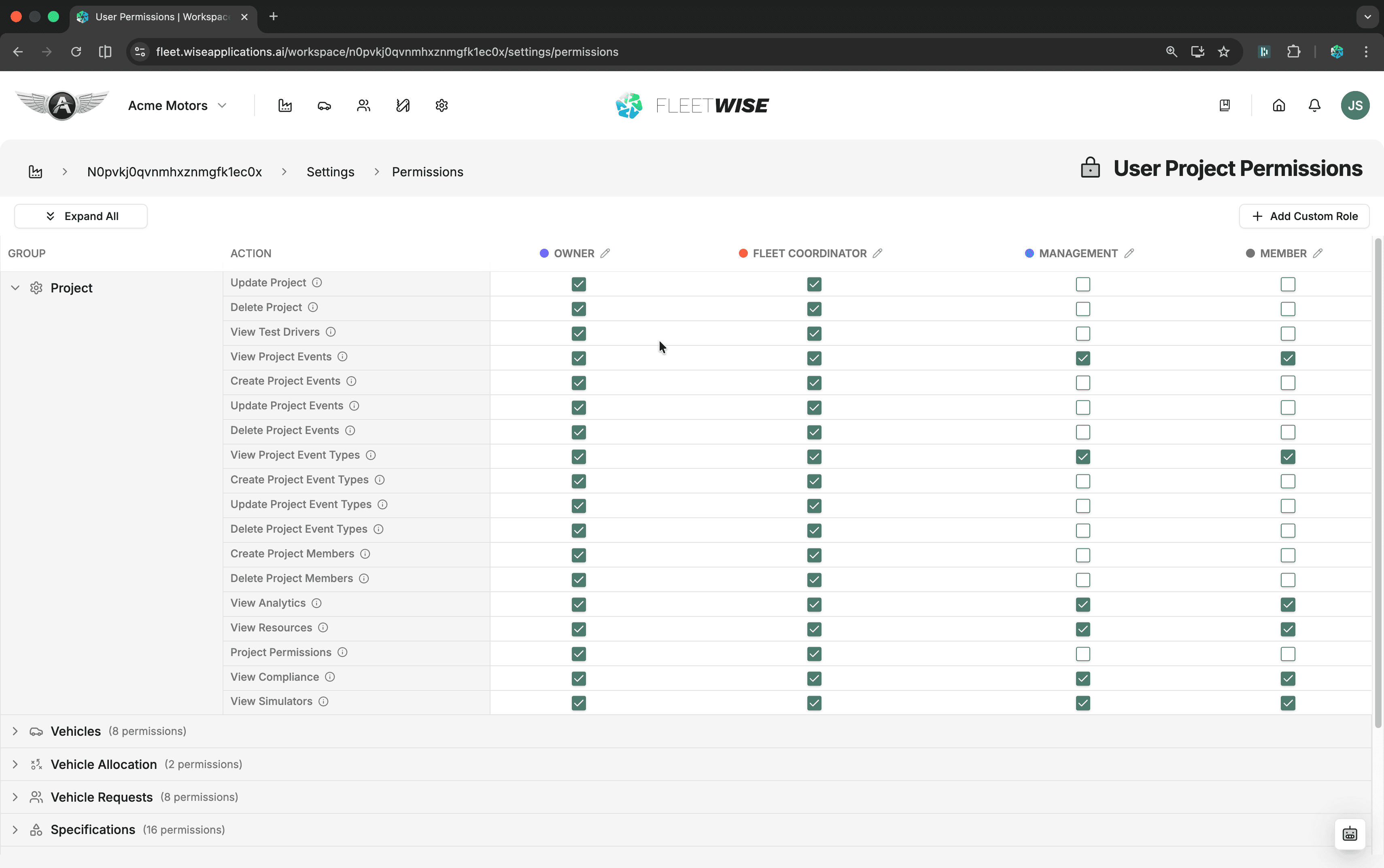
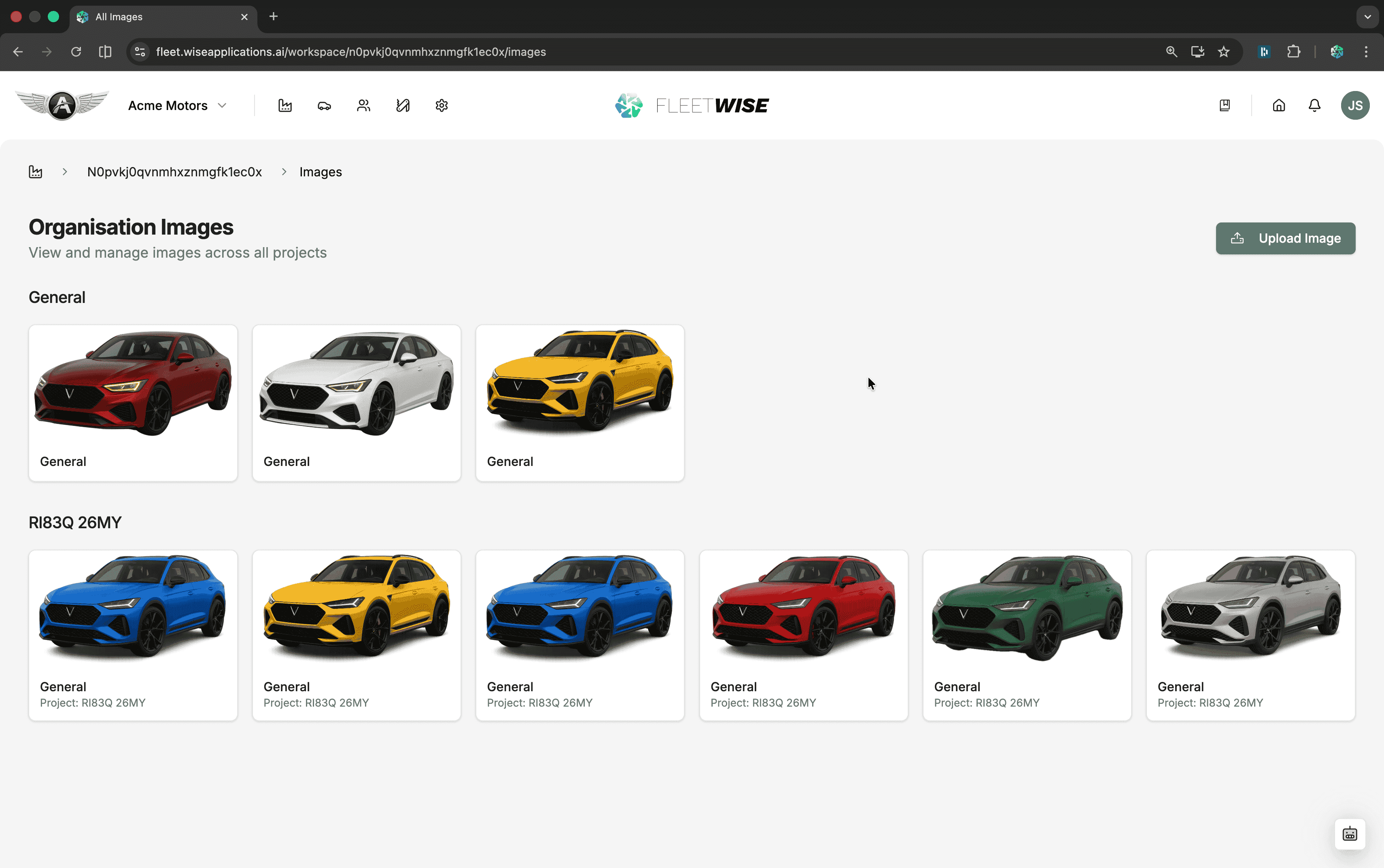
Image Gallery
Upload and manage images used across the workspace — logos, branding assets, and shared visual resources available to all projects.
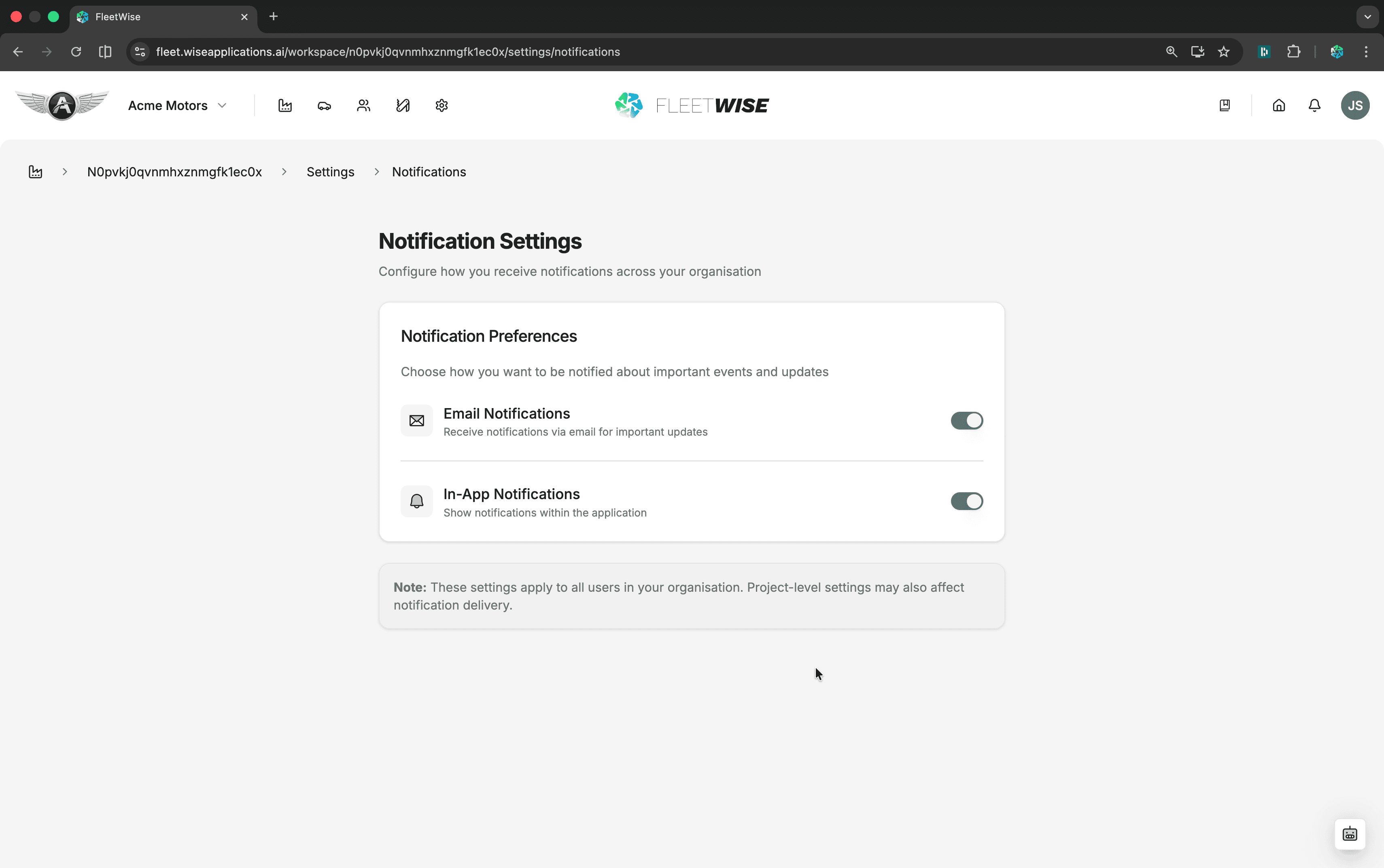
Notifications
Configure workspace-level notification preferences that apply as defaults across all projects. See Notifications for details on notification types and channels.
Custom Data
Coming Soon
Custom data fields and objects are under development. Once available, Workspace Admins will be able to extend Fleetwise's data model with custom fields on vehicles, requests, allocations, and other entities.
Integrations
Coming Soon
The integrations module is under development. Check back for updates on available connectors.
Tips
- Review workspace settings when onboarding a new team to ensure permissions and notifications are configured correctly.
- Use email previews to verify that automated notifications contain the right information for your organisation.
- Configure permissions before adding users to avoid granting unintended access.