Roles and Permissions
Understand workspace and project roles in Fleetwise and what each role can access.
Fleetwise uses role-based access control at two levels: workspace and project. Your roles determine which pages you can see, which actions you can take, and which data is visible.
Workspace Roles
Workspace roles control organisation-level access.
| Role | Typical User |
|---|---|
| Admin | Organisation administrators who manage users and settings |
| User | Standard workspace members with project-level access |
Project Roles
Project roles control what you can do within a specific project. You can hold different roles in different projects.
| Role | Typical User |
|---|---|
| Member | Engineers, testers — anyone who submits vehicle requests |
| Fleet Coordinator | Operations staff who review requests and manage allocations |
| Management | Team leads who monitor metrics, bottlenecks, and delivery |
| Owner | Project leads who configure settings and manage membership |
What Each Role Can Do
- View the project dashboard and vehicle list
- Create, edit, submit, and withdraw vehicle requests
- View allocation status for your own requests
- View the schedule (read-only)
- Use Oscar to ask questions
- View usage plans (read-only, depending on configuration)
Everything a Member can do, plus:
- Review and process all requests in the project
- Create, confirm, and cancel allocations
- Use the Allocator for bulk allocation
- Manage the schedule view
- Add and edit vehicles
- Manage usage plan schedules and resources
Everything a Fleet Coordinator can do, plus:
- Access project analytics and reporting
- Monitor delivery performance and bottlenecks
- View all work packages and their progress
Everything Management can do, plus:
- Manage project members and role assignments
- Configure project settings (specs, tags, events)
- Create and manage work packages
Workspace Admin Access
Workspace Admins have full access across the workspace:
- Manage workspace users and invitations
- Configure workspace settings and custom data
- Create and manage projects
- Access all projects in the workspace
- Manage workspace-level resources
Permission Areas
Permissions are grouped by feature area. Workspace Admins can configure each permission independently per role under Settings → Permissions.
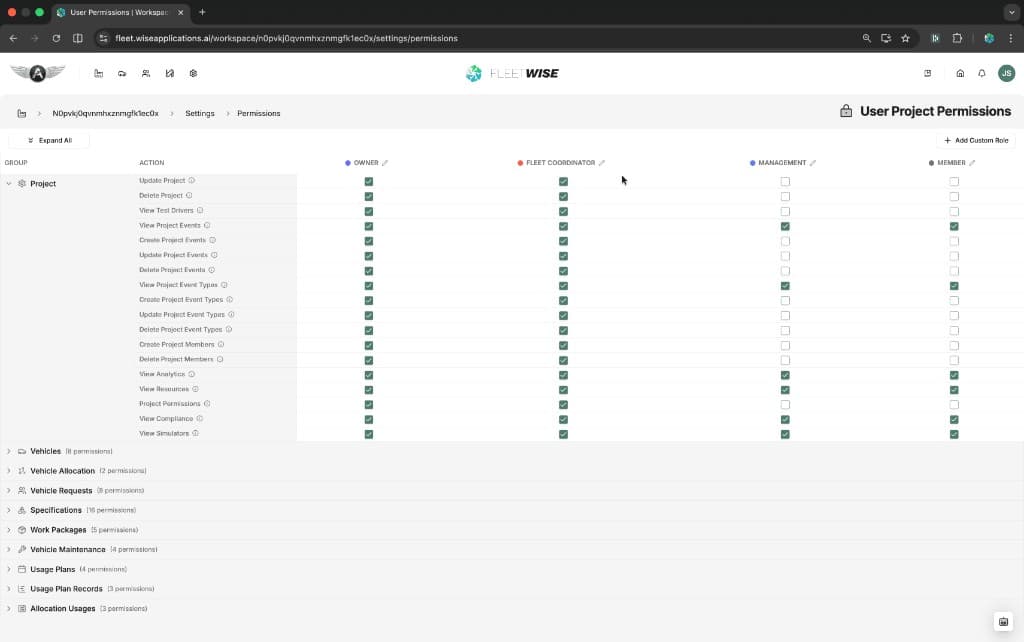
| Permission Area | Controls |
|---|---|
| Project | Update/delete project, manage members, view analytics and resources |
| Vehicles | View, create, edit vehicles and vehicle specs |
| Vehicle Allocation | View and manage allocations |
| Vehicle Requests | View, create, edit, submit, withdraw requests |
| Specifications | Manage spec families, spec codes, attributes, and attribute tags |
| Work Packages | View, create, edit work packages |
| Vehicle Maintenance | View and manage maintenance events |
| Usage Plans | View, edit, publish usage plan schedules |
| Usage Plan Records | View and manage usage plan shift records |
| Allocation Usages | View and manage allocation usage entries |
Custom Roles
In addition to the four default project roles, workspace Admins can create entirely new custom roles using + Add Custom Role on the permissions page. Custom roles appear as additional columns in the permission matrix, and you can configure each permission independently.
This is useful when a team needs a role that doesn't map to the defaults — for example, a "Test Manager" role with read access to everything but write access only to work packages and usage plans.
Role Assignment
Once created, custom roles can be assigned to users just like the default roles. A user holds one project role per project.
Checking Your Role
You can see your current roles on your Profile page, which lists every project you have access to and your role in each.
Tips
- If you cannot see a page or button, check your role with the project Owner or a workspace Admin.
- New team members are typically added as Members — ask for a role change if you need Fleet Coordinator or Management access.
- Workspace Admins can customise permissions for specific users without changing their overall role.