Using the Allocator
Process multiple requests in bulk with recommendation-based vehicle matching and allocation drafts.
The allocator is a bulk allocation tool for Fleet Coordinators. Instead of allocating vehicles to requests one at a time, you can process a batch of requests together, review recommendations, and confirm or adjust allocations before applying them.
When to Use the Allocator
Use the allocator when you have multiple pending requests to process at once — for example, at the start of a new test phase or when a batch of requests arrives from a project team. For single requests, allocating directly from the request detail view is usually faster.
Opening the Allocator
Navigate to Planning → Allocator in the project sidebar.
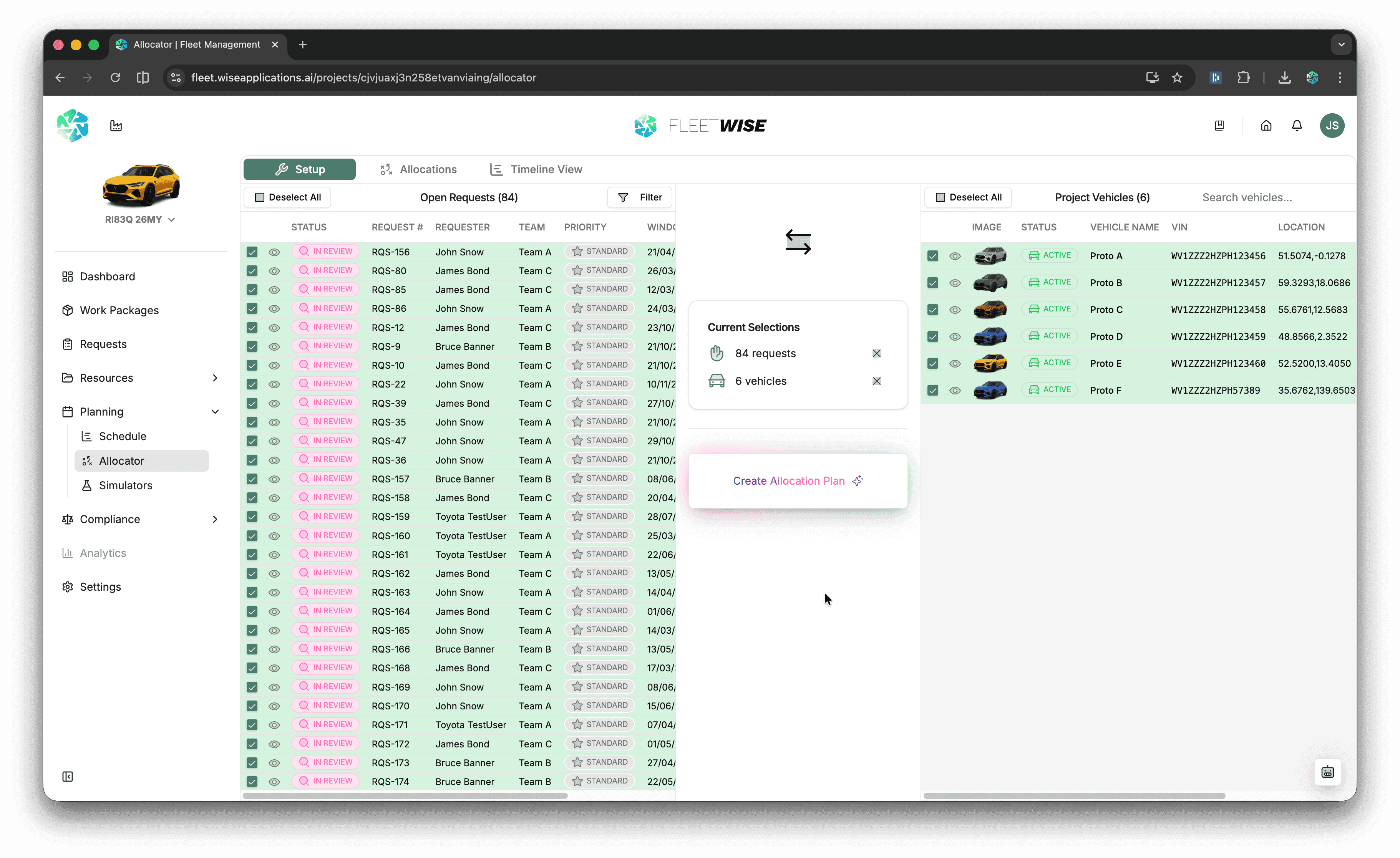
Allocation Workflow
Select Requests
Choose which pending requests to include in the allocation batch. You can select all pending requests or pick specific ones.
Select Vehicles
Choose which vehicles from the project should be included in the recommendation pool. Only selected vehicles will be considered when generating matches.
Generate Recommendations
Click Generate Recommendations to run the matching engine. Fleetwise evaluates each request against available vehicles and produces ranked recommendations.
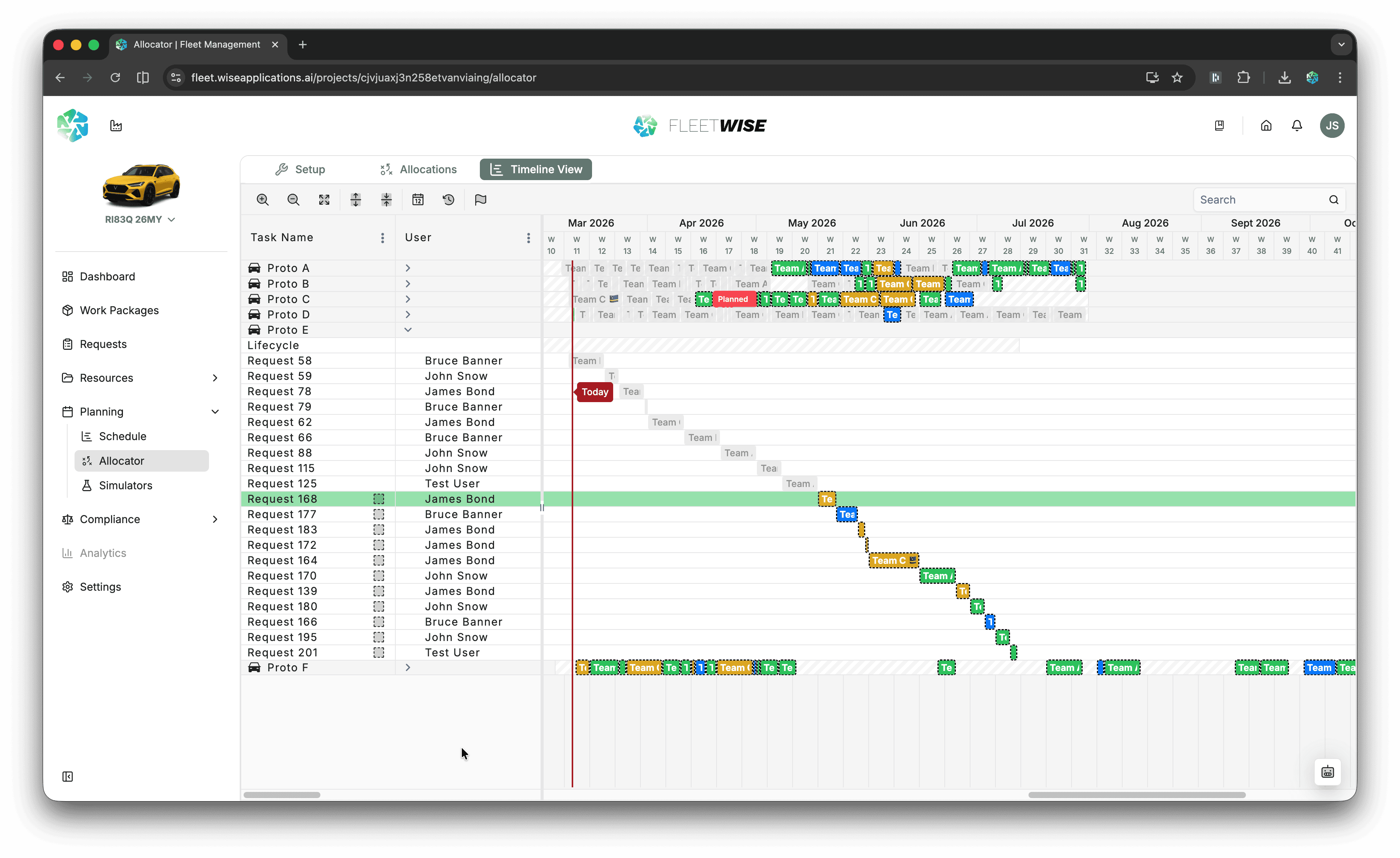
Grey blocks represent existing allocations and maintenance events. New recommendations are shown coloured by team.
Review and Adjust
For each request, review the top-ranked vehicle and the alternatives. You can:
- Accept the recommended vehicle.
- Skip a request to handle it later.
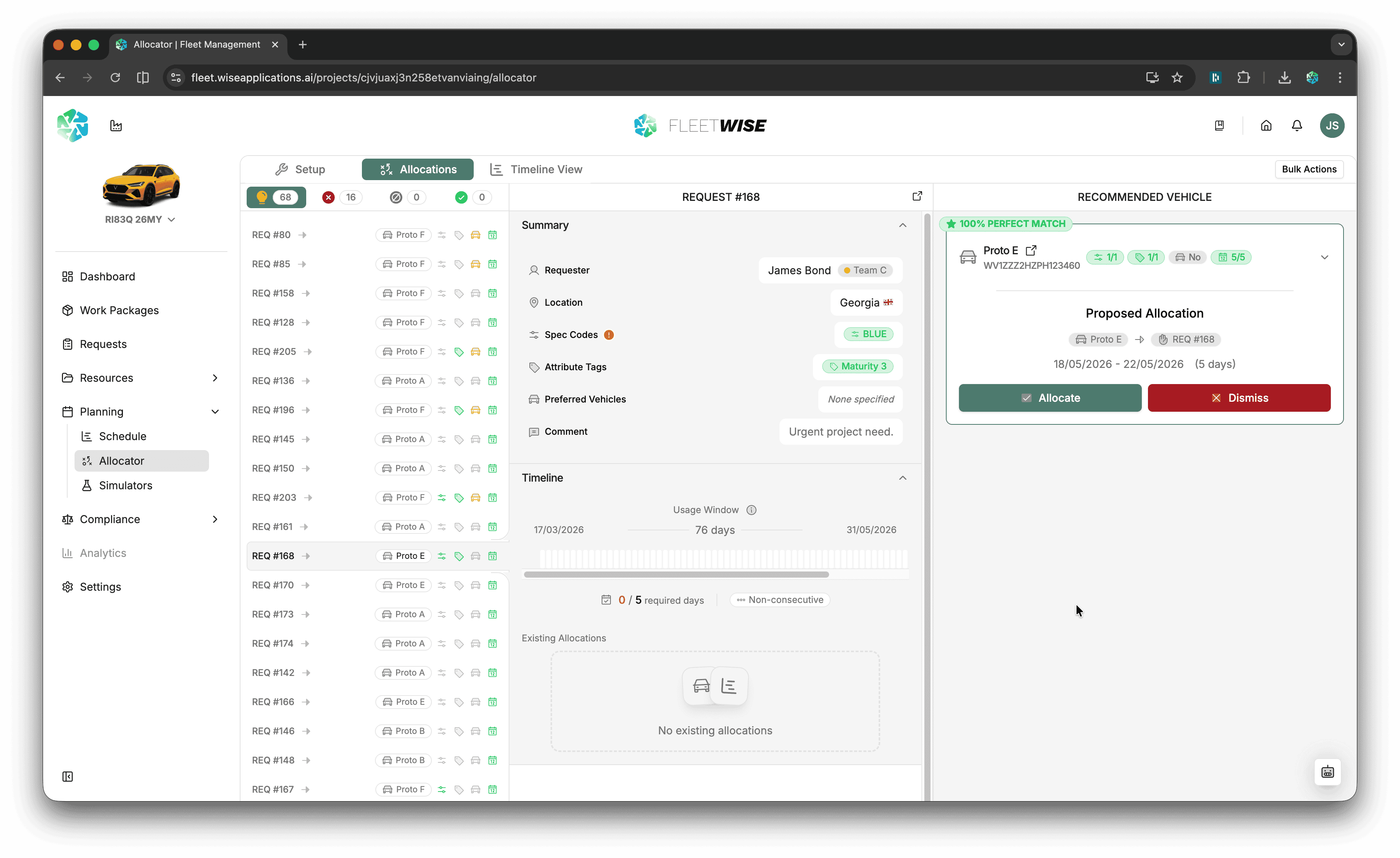
Recommendation Scores
Each recommendation includes a match score based on spec code coverage, attribute match, availability overlap, and preferred requirement alignment. Higher scores indicate better fits.
Apply Allocations
When you are satisfied with the batch, click Apply to create the allocations. Allocations are created in Draft or Tentative state depending on your settings. Tentative allocations are sent to the requestor for acceptance, and you can track progress from the Schedule View.
After Applying
- New allocations appear in the schedule view and on the linked request detail pages.
- Request statuses update automatically to reflect the new allocation coverage.
- Review the Allocation Lifecycle to understand next steps.
Tips
- Run the allocator regularly (e.g. daily or at the start of each sprint) to keep the request queue manageable.