Mileage Accumulation Simulator
Model mileage accumulation scenarios to forecast completion dates, required headcount, fleet size, or maximum capacity.
The mileage accumulation simulator helps you answer planning questions like "When will we hit our target?", "How many drivers do we need?", or "What's the maximum mileage we can achieve?" Adjust inputs and see results update in real-time.
When to Use This Simulator
- Before creating a usage plan, to validate that your vehicle and driver capacity is sufficient.
- Mid-programme, to check whether you are on track to hit mileage targets.
- When resources change (vehicles added/removed, drivers unavailable) to see the impact on the forecast.
Opening the Simulator
Navigate to Planning → Simulators → Mileage Accumulation in the project sidebar.
Simulation Goals
The simulator supports four modes. Select your goal from the buttons at the top of the configuration panel — the other three variables become inputs that you can adjust. Results update in real-time.
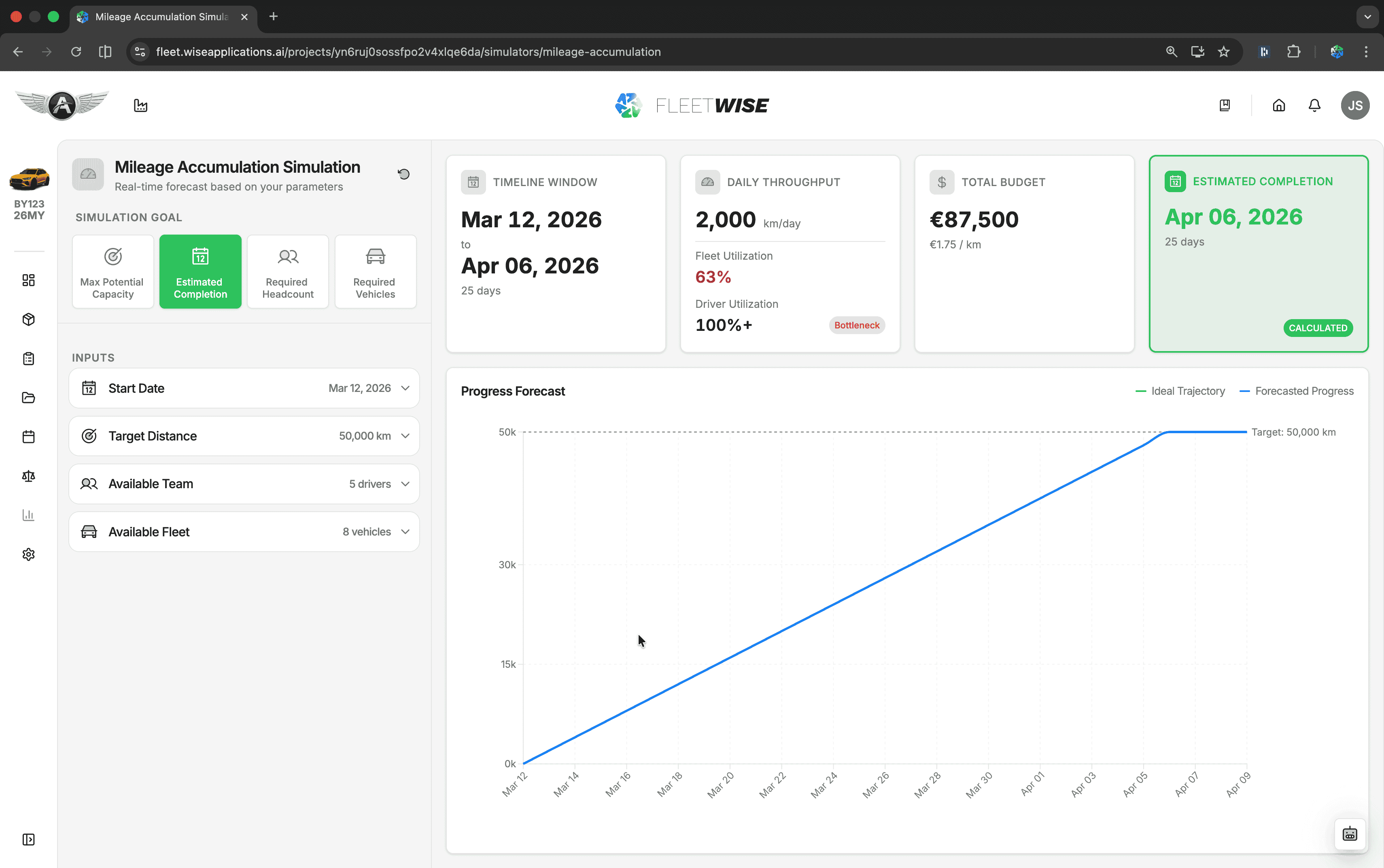
Given a target distance, drivers, and vehicles — when will it be done?
Set your target kilometres, available team (drivers, shifts per day, km per shift), and fleet size. The simulator calculates the projected completion date.
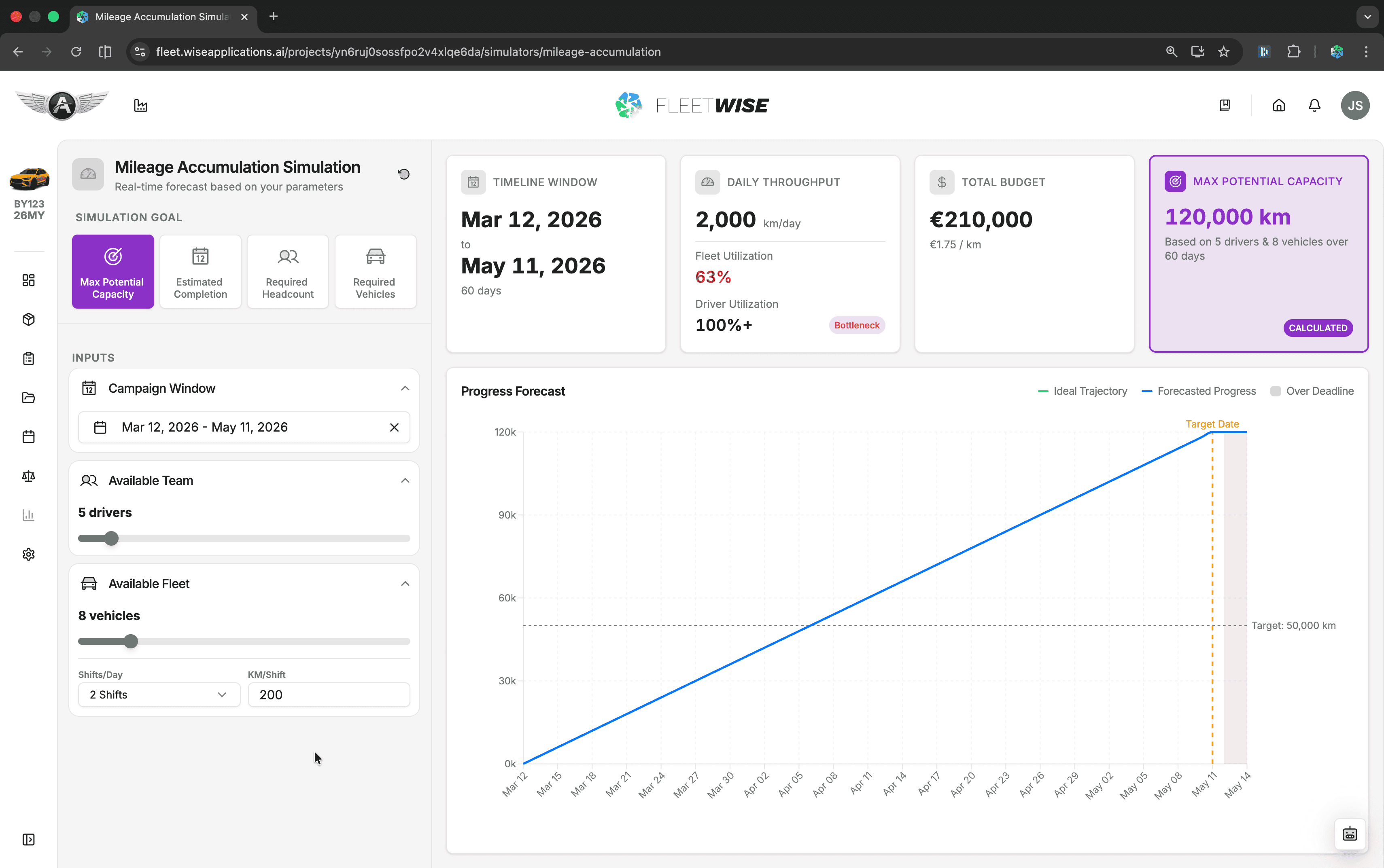
Given a time window, drivers, and vehicles — what's the maximum distance achievable?
Set your campaign window, available team, and fleet size. The simulator calculates the maximum kilometres your resources can deliver.
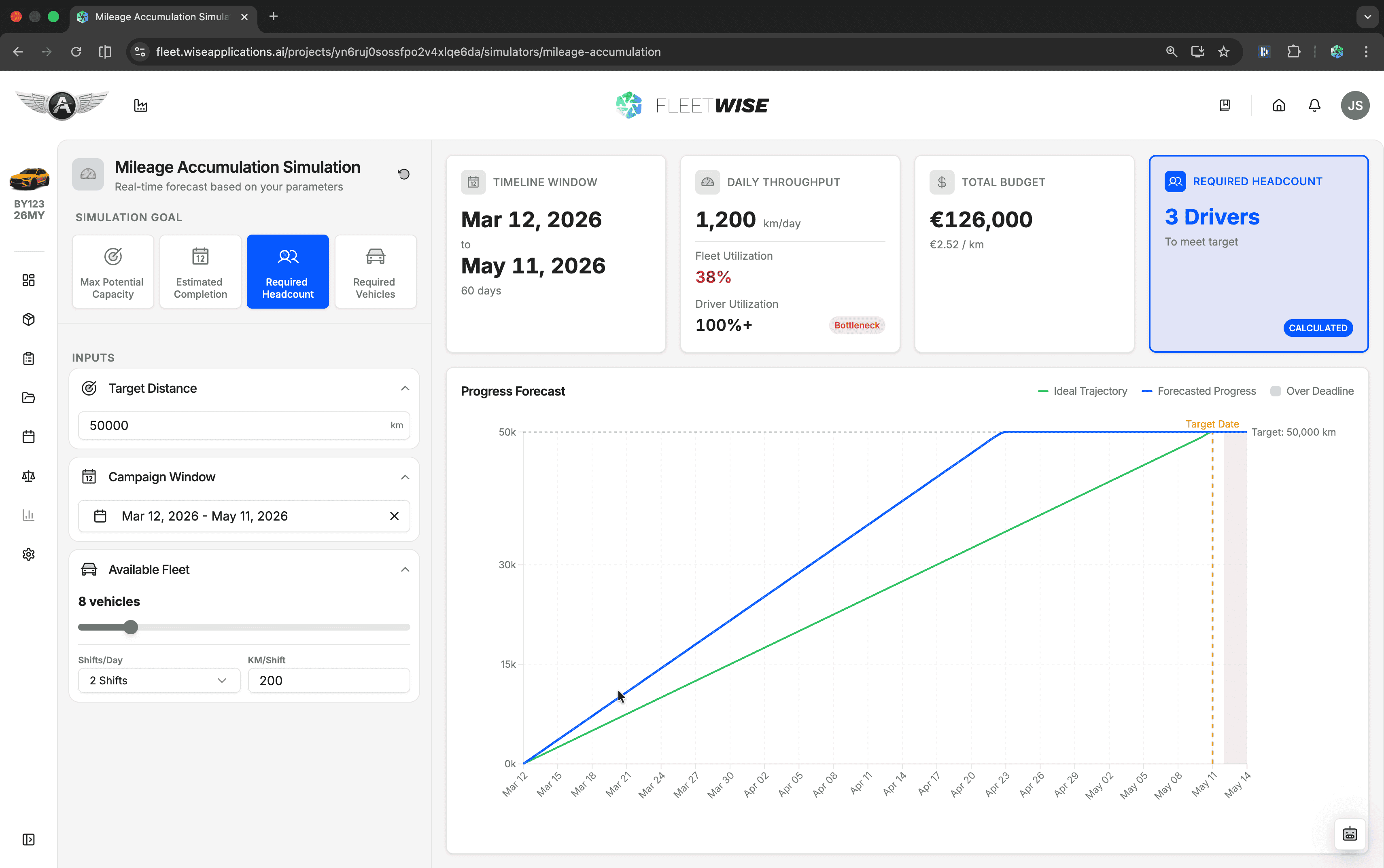
Given a target distance, time window, and vehicles — how many drivers are needed?
Set your target kilometres, campaign window, and fleet size. The simulator calculates the minimum number of drivers required.
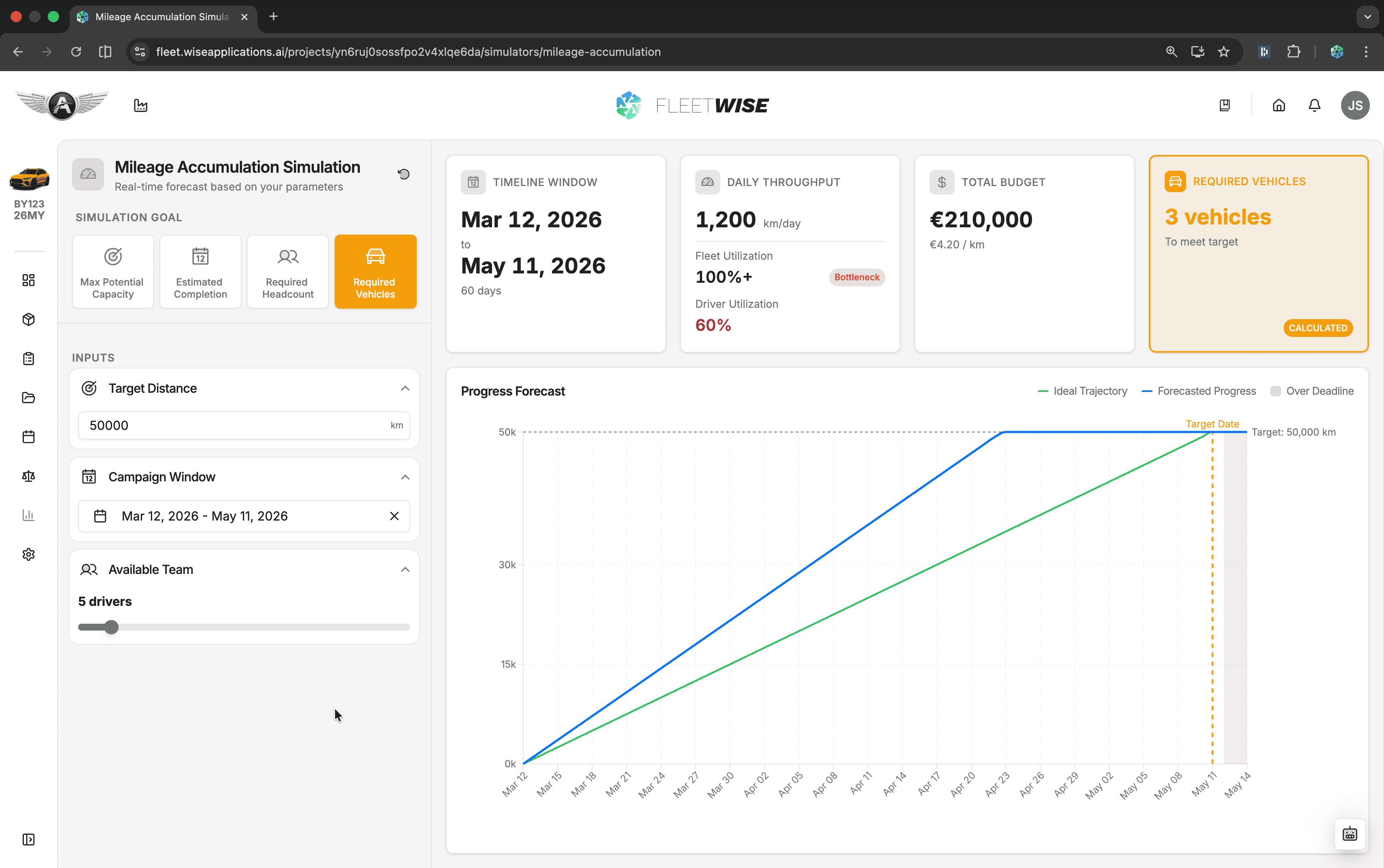
Given a target distance, time window, and drivers — how many vehicles are needed?
Set your target kilometres, campaign window, and available team. The simulator calculates the minimum fleet size required.
How It Works
The left panel contains accordion input cards for each variable group. Expand a card to adjust values using sliders or direct entry:
| Input | Description |
|---|---|
| Target Distance | The total kilometres to achieve |
| Campaign Window | Start and end dates for the programme |
| Available Team | Number of drivers, shifts per day, km per shift |
| Available Fleet | Number of vehicles |
The right panel shows metric cards across the top — a summary equation showing how distance, time, headcount, and fleet relate, with the solved variable highlighted — and a cumulative mileage chart projecting accumulation over time.
Use the reset button to return all inputs to defaults.
Tips
- Run the simulator early in the planning phase to identify capacity gaps before they become urgent.
- Use conservative km-per-shift estimates — real-world driving includes warm-up, traffic, and weather delays.
- Re-run the simulator when actual mileage data comes in from Log Entries to compare forecast against reality.
- Try multiple modes to build a complete picture — for example, check completion date first, then see if adding one more vehicle or driver brings it forward significantly.