Navigating Fleetwise
Learn the main layout — header, sidebar, workspace and project switching, and key navigation patterns.
Fleetwise has two navigation levels: the workspace level (top header) and the project level (left sidebar). Understanding how to switch between them is the quickest way to move around the platform.
Overall Layout

| Area | Purpose |
|---|---|
| Header (top bar) | Workspace navigation, global actions, user menu |
| Sidebar (left) | Project-level navigation — visible when a project is selected |
| Main Content (centre) | The active page content |
Header Navigation
The header is always visible and provides workspace-level navigation.
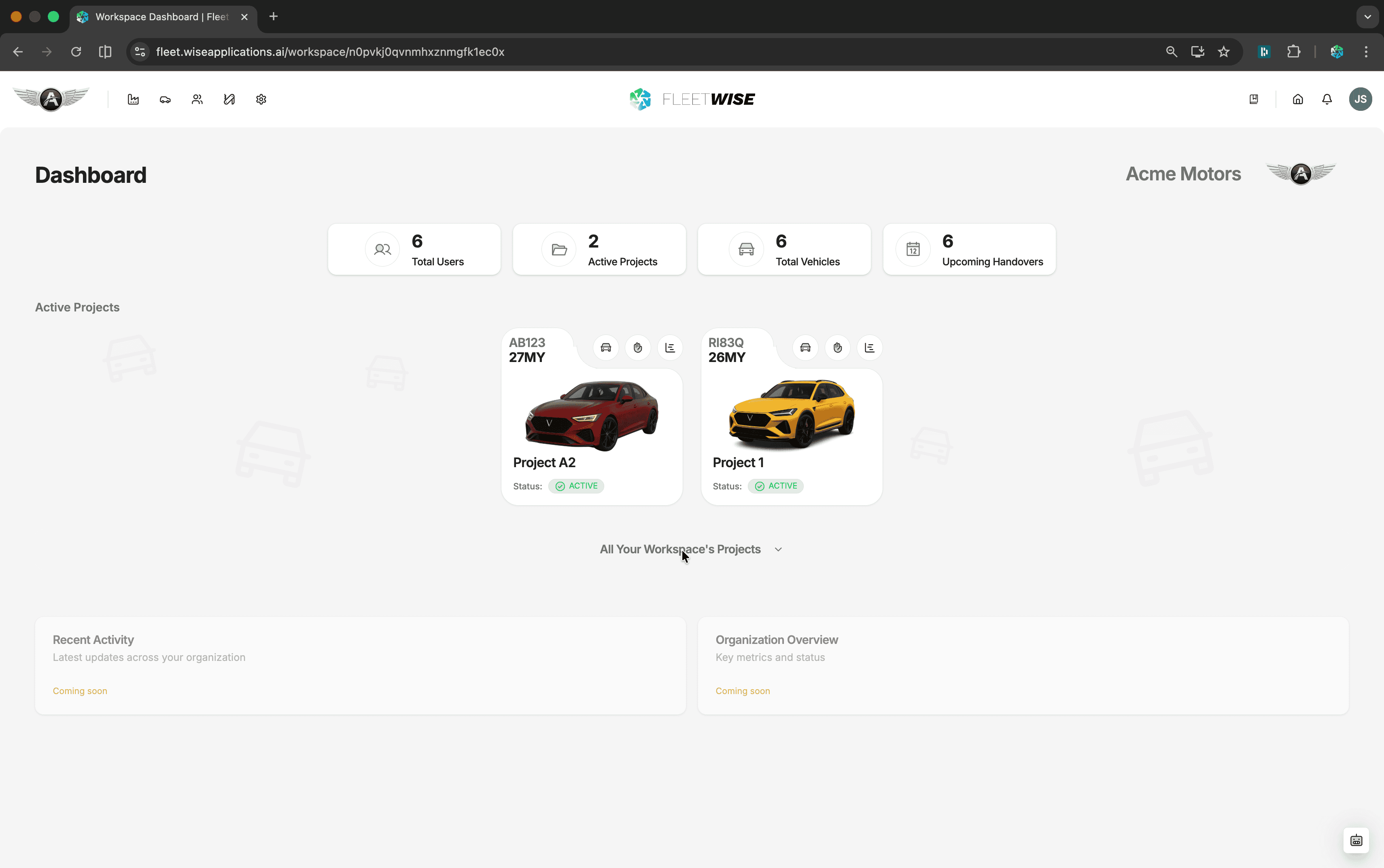
Left Section
- Workspace selector — click the logo/name to switch workspaces or view the workspace list.
- Workspaces — view all workspaces (if you have access to multiple).
- Projects — list all projects in the current workspace.
- Users — workspace-level user management.
- Resources — shared resources (test drivers, equipment).
- Settings — workspace-level configuration.
Right Section
- Docs — opens this documentation in a new tab.
- My Dashboard — your personal homepage with activity and requests.
- Notifications — bell icon showing unread alerts.
- User menu — profile, theme toggle (light/dark), and logout.
Project Sidebar
When you select a project, the left sidebar appears with project-specific navigation.
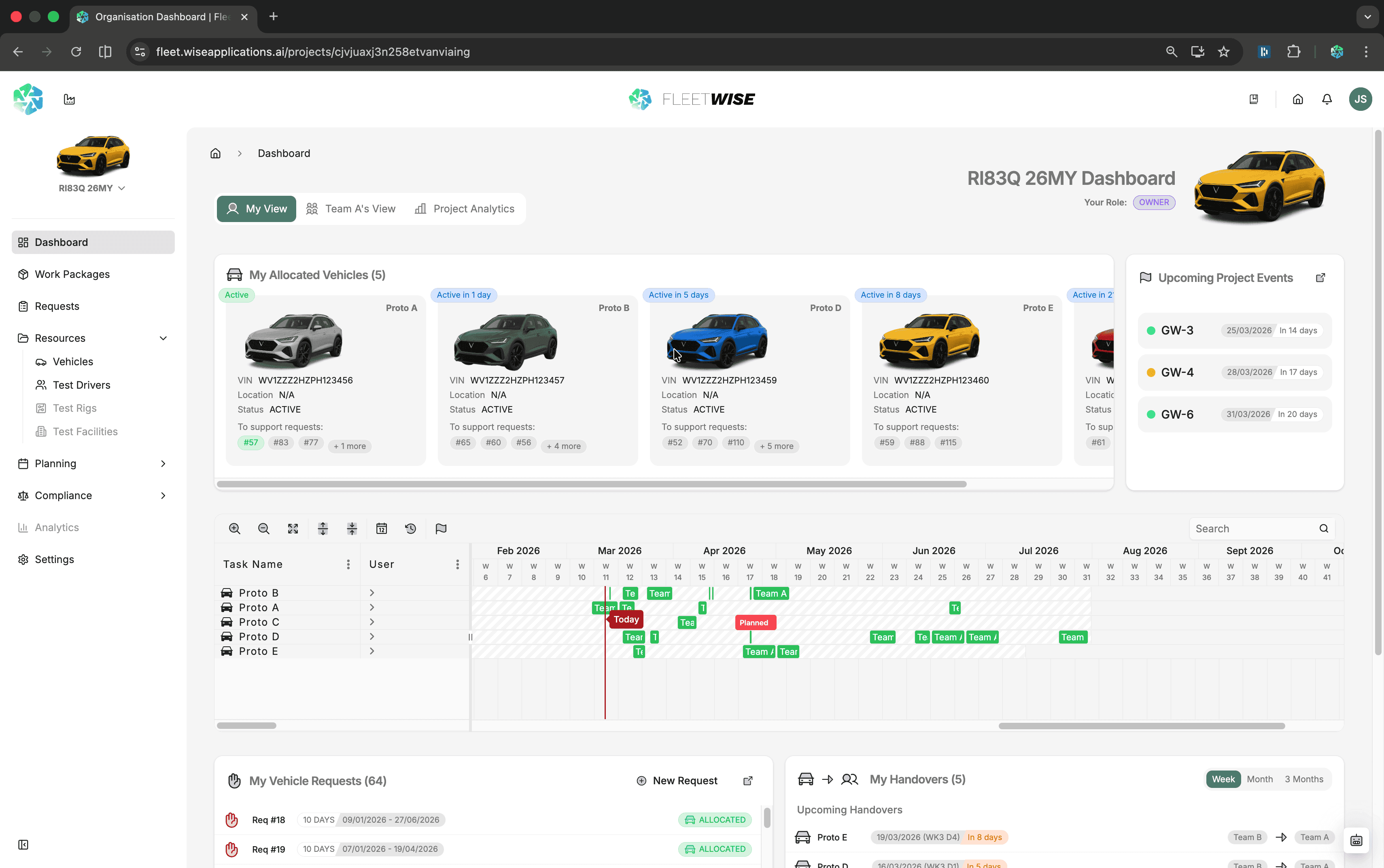
| Section | Pages |
|---|---|
| Dashboard | Project overview with metrics and activity |
| Work Packages | Work package list and management |
| Requests | Request list, my requests, new request |
| Resources | Vehicles, Test Drivers |
| Planning | Schedule (allocation Gantt), Allocator, Simulators |
| Settings | Project-level configuration |
Switching Projects
Use the project selector dropdown at the top of the sidebar to switch between projects without returning to the workspace level.
Switching Workspaces
Click the workspace name in the header to open the workspace selector. If you belong to multiple workspaces, you can switch between them here.
Workspace Context
When you switch workspaces, the project sidebar resets. Select a project from the new workspace to continue.
Breadcrumbs
Breadcrumbs appear at the top of the main content area, showing your current location in the hierarchy (e.g. Workspace → Project → Vehicles → Vehicle Detail). Click any breadcrumb to navigate back.
Quick Tips
- Use the header to manage workspace-level concerns (users, resources, settings).
- Use the sidebar to manage project-level work (requests, vehicles, allocations).
- Bookmark frequently used project pages for faster access.
- Use Oscar to jump to information quickly without navigating through menus.